Bridal Shower Slideshow: A Step-by-Step Guide for 2026
Plan a flawless bridal shower slideshow in 2026. Master tech setup, photo selection, pacing, and live QR-based uploads with our step-by-step guide.
From first scan to shared album
See bridal shower slideshow: a step-by-step guide for 2026 from the guest’s side.
Plan a flawless bridal shower slideshow in 2026. Master tech setup, photo selection, pacing, and live QR-based uploads with our step-by-step guide.



The QR code is printed, the projector is switched on, and guests are already asking where to send their photos. Then the messages begin arriving from every direction: compressed images in group chats, screenshots with notification banners, duplicate childhood portraits, and a few uploads no one should see on a public screen. A bridal shower slideshow can become the emotional center of the party, but only when the collection process and the live display are planned as one workflow.
The reliable approach is simple: collect photos through a low-friction browser upload, review them before they appear, build a short story from the strongest images, and test the complete setup at the venue. That keeps the spontaneity of guest contributions without handing your screen an uncontrolled stream of content.
Table of Contents
- The Magic Behind a Memorable Bridal Shower Slideshow
- Collecting Photos with QR Code Technology
- Setting Up the Tech for Flawless Playback
- Pacing the Story and Choosing Music
- Live Moderation and Handling Mishaps
- Your Checklist for a Perfect Bridal Shower
The Magic Behind a Memorable Bridal Shower Slideshow
A host once showed me a phone full of wonderful memories, none of them organized. One aunt had emailed childhood pictures, cousins had posted phone screenshots in a group chat, and friends were still searching old camera rolls. The bride was surrounded by photos, yet the host had no dependable way to turn them into a coherent moment.
A slideshow changes that when it gives those memories a shared destination. Guests see their own contribution appear alongside family portraits, university friends, travel snapshots, and recent couple photos. The room stops feeling like a collection of separate social circles and starts feeling like one community gathered around the bride.
The tradition has older roots than many guests realize. The recognizable bridal shower is generally traced to 16th-century Holland, where gifts helped a bride begin married life when dowry support was unavailable or withheld, as described in this history of the bridal shower tradition. In North America, the custom expanded through urban communities during the late 19th and early 20th centuries, eventually becoming a familiar pre-wedding gathering.
The slideshow medium has its own long history. Slide shows date back to the 1600s, when hand-painted glass images were projected with a magic lantern, according to this overview of bridal shower history and slideshow culture. Today's screen is more convenient, but the purpose remains recognizable: use images to gather people emotionally before conversation moves on.
Practical rule: Treat the slideshow as a hosted part of the celebration, not background decoration.
The strongest decks usually follow a life story rather than a filing system. Start with the bride as a child, move through friendships and family, add shared adventures, and close with a group message or wedding wish. If you want a physical keepsake as well, a bridal shower photo album can preserve the selected memories after the event.
Collecting Photos with QR Code Technology
Photo collection works best when guests can contribute without learning a new system. A browser-based QR upload removes the usual barriers: there's no app installation, account creation, or hunt through old email threads. Guests scan the code with their phone, choose images from the camera roll, and submit them to the private event gallery.
Set up the process in this order:
-
Create the private album. Use a gallery that lets you control who can view, download, and publish the material. Keep the album dedicated to the shower if you want a clean slideshow, or use one event album that can continue through the wedding.
-
Prepare the QR display. Put the code near the entrance, beside the guest book, and close to the food or gift table. Add a short instruction such as “Scan to share a favorite memory of the bride.” The wording matters because guests need to understand what kind of photo you're requesting.
-
Test the upload from more than one phone. Check an iPhone and an Android device if possible. Confirm that the browser opens correctly, the upload completes, and the original file reaches the gallery instead of a reduced preview.
-
Ask for contributions early, then keep the code live. Include the QR code with the invitation or digital reminder, and leave it available during the shower for spontaneous uploads. Early submissions give you material to build the initial sequence, while live contributions add energy during the event.
-
Review before display. Separate duplicates, blurry frames, private moments, screenshots, and images with distracting text. Keep the best version of repeated memories rather than allowing every near-identical file into the rotation.
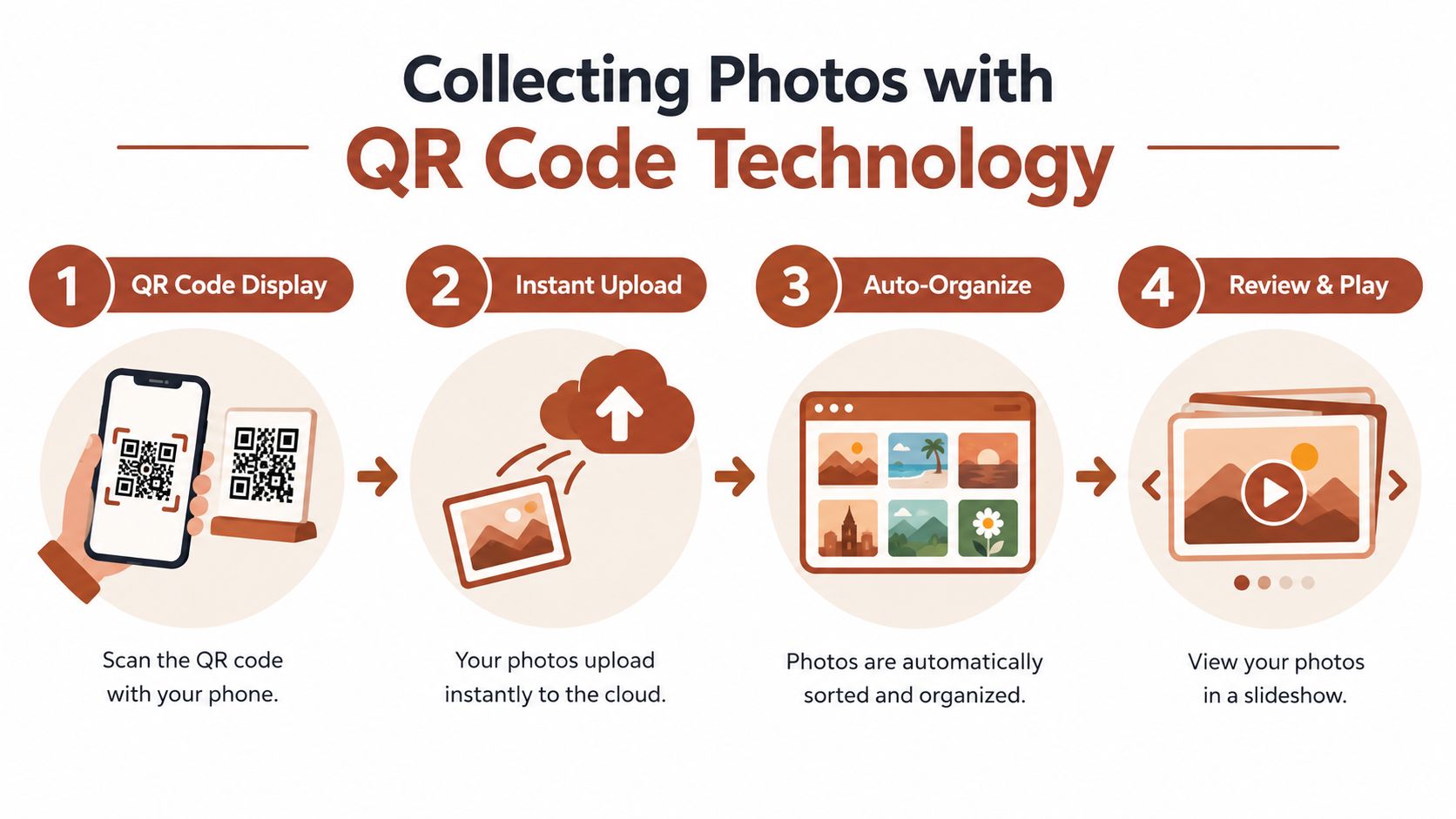
A service such as QR-code wedding photo collection can centralize browser uploads, moderation, original-quality downloads, and an approved-photo slideshow in one private album. Other galleries can work too, but check whether pending uploads stay hidden from the live display. That separation is the difference between instant participation and accidental publication.
Quality control before sequencing
Don't build the slideshow directly from the incoming upload stream. Create a review view or working folder, then mark images for inclusion. Look for faces that are visible at the expected screen size, horizontal crops that suit a 16:9 display, and enough variety to prevent five similar group photos from appearing together.
The QR code solves collection friction, not editorial judgment. You still need one person responsible for approving images, one person responsible for the final sequence, and a clear cutoff before playback. If guests can upload throughout the event, approve new material selectively rather than allowing the display to change unpredictably.
Setting Up the Tech for Flawless Playback
A bridal shower slideshow can fail before the first photo appears. An incompatible adapter, sleeping laptop, venue Wi-Fi problem, or message notification can interrupt the presentation and expose unapproved guest uploads. Test the full setup at the venue, using the same QR-upload workflow planned for the event.
Start with the actual display rather than a home monitor. Connect the laptop, HDMI adapter, cable, power supply, screen, and playback device you will use on the day. Open the slideshow in fullscreen and check that images fill the screen without awkward cropping. Use this wedding slideshow playback guidance as a planning reference, then treat the venue setup as the final test environment.
Test the complete chain
Run the following checks at the display location:
- Connection: Plug in the exact adapter and HDMI cable. Pack a compatible spare of each.
- Screen format: Confirm 16:9 formatting, so portraits do not appear stretched and black borders stay limited.
- Network: Test the venue Wi-Fi beside the screen and playback device, not only near the entrance or bar.
- Live upload: Send a test photo from a phone. Confirm that it reaches the gallery and remains hidden until someone approves it.
- Power: Disable sleep mode, connect to mains power, and secure cables away from guest and staff walkways.
- Notifications: Turn off banners, calls, message previews, automatic updates, and unrelated browser tabs.
- Playback: Run the slideshow from start to finish, including transitions, audio, and the live gallery connection.
The room needs testing too. Stand at the back and check whether captions remain readable, whether windows wash out the screen, and whether the projector sits high enough for nearby guests to see around people in front. A polished control-table view does not guarantee a readable display from the last row.
Freeze the reliable version
Freeze content changes 24 to 48 hours before showtime, following this event slideshow setup checklist. Late memories can still be considered, but export the approved playback version and store it separately. Keep late uploads outside the live display unless someone has time to review them.
Store one local copy on the playback laptop, another on a separate drive, and an online version if the platform supports it. The local export protects the presentation if venue Wi-Fi becomes unreliable. Keep the QR gallery available for controlled additions, while the tested file remains ready to play.
Venue rule: Test the complete signal path before guests arrive, then stop changing the working version.
Pacing the Story and Choosing Music
A slideshow can lose the room in two ways: images change before guests recognize the people, or each frame stays up so long that conversation fades. Set the pace for the venue, not just the editing timeline. Guests at the back need clear faces, readable captions, and enough time to react, especially when new QR-code uploads are being considered for the live display.
A practical bridal shower slideshow runs 3 to 6 minutes and uses about 30 to 60 photos, according to this slideshow workflow guide. For general viewing across the room, start with 3 to 5 seconds per image. Give a group portrait extra time, while a simple close-up can move faster. A caption, guest upload, or unfamiliar face may also need a longer hold. Use these figures as an editing baseline, then test the sequence from the audience area.
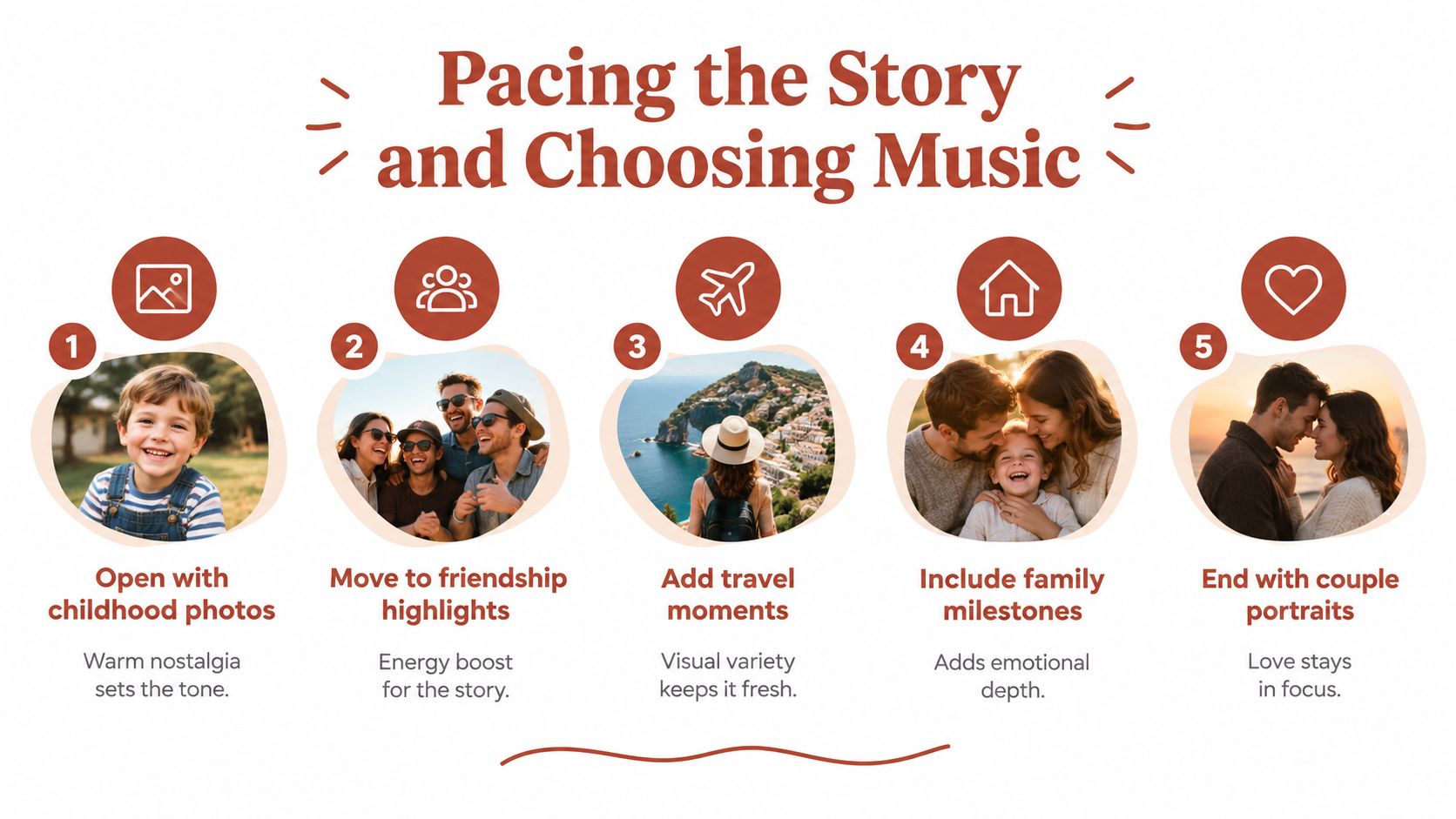
Build an emotional sequence
Use a progression guests can follow:
- Childhood opening: Start with a baby photo, school portrait, or early family image. Older relatives usually recognize these quickly.
- Friendship section: Continue with school, work, university, and friendship memories to raise the energy and widen the story.
- Travel and everyday life: Add trips, hobbies, celebrations, pets, and ordinary moments that show personality.
- Family milestones: Follow the lighter material with gatherings and meaningful occasions, once guests are invested.
- Couple ending: Finish with couple portraits, a group wish, or a short message from everyone present.
Captions should clarify an image, not compete with it. Use names, places, or a brief phrase when context matters. Keep text short enough to read before the next frame. For QR-code submissions, review the crop and caption before approving a photo, because a rushed upload can interrupt the visual rhythm even when the image itself is good.
Music should support the sequence and the room's mood. Two or three songs are enough for a short deck, and our wedding slideshow song guide covers pacing and mood matching. This bridal shower song guide offers further celebratory and romantic options. Choose tracks that fit the bride and audience, then trim them cleanly so transitions do not cut through a lyric or end halfway through a moment.
Preview the full image-and-music combination at a comfortable volume. A romantic song may still feel too slow or intense for relatives and friends. The slideshow should leave room for conversation and applause, with the screen carrying the story rather than dominating the celebration.
Keep the final frame on screen long enough for guests to react. The closing wish is a moment, not a transition error.
Live Moderation and Handling Mishaps
Live uploads create excitement, but they also create responsibility. A guest may submit a blurry image, a private joke, or a photo that makes sense to three friends and no one else. Set the gallery so new uploads remain pending until someone approves them.

Assign a moderator who isn't responsible for speeches, catering, gifts, and guest care at the same time. That person can review the queue from a laptop or tablet, approve suitable photos, and reject material that doesn't meet the agreed standard. Keep the live display on approved content only, with the curated deck available as the stable base layer.
Use a calm response plan
If a new photo is strong, approve it during a natural pause or let it enter a designated live section. If it needs cropping, captioning, or closer review, leave it pending. Guests don't need a public explanation for every rejected upload.
For playback problems, troubleshoot in a fixed order:
- Audio stops: Check the selected output device and cable, then switch to the local exported file if streaming audio is unstable.
- Projector flickers: Confirm power and cable seating before restarting the entire presentation.
- Laptop sleeps: Reconnect power, disable sleep, and reopen fullscreen playback.
- Notifications appear: Close messaging apps and turn on the device's focus or do-not-disturb mode.
- Wi-Fi fails: Continue with the downloaded slideshow and keep collecting uploads for later approval.
Place the backup laptop or drive with the event coordinator, not in a locked office. Tell the venue technician which input the slideshow uses and where the spare cable is stored. A short verbal handoff prevents the common problem where the person who knows the system leaves to greet guests.
Use the live display as an enhancement, not the only version of the story. If the connection becomes unreliable, switch to the approved local deck without apologizing at length. Guests remember the celebration, not whether every late upload appeared immediately.
The video can help your moderator visualize the review-and-display workflow before the event. Practice approving one test photo, leaving another pending, and returning to the stable slideshow so the handoff feels routine rather than improvised.
Your Checklist for a Perfect Bridal Shower
Use this final production check to keep guest uploads easy, content controlled, and the live slideshow dependable. Separate collection, approval, storytelling, and playback so one device is not handling every task.
Before invitations go out
- Choose the gallery: Confirm private viewing, browser uploads, moderation, original-file handling, and export options.
- Prepare the QR code: Test it from printed signage and a phone screen.
- Set the request: Ask guests for favorite memories rather than every image in their camera roll.
- Assign ownership: Name one photo moderator and one playback lead.
Before the event
- Storyboard the deck: Begin with childhood, move through friends and family, then finish with couple portraits or a group wish.
- Edit firmly: Remove duplicates, blurry frames, unsuitable content, and captions that are hard to read.
- Choose music: Use a small set of compatible tracks and preview the full sequence.
- Freeze the working version: Lock the stable deck 24 to 48 hours before the event so late uploads cannot destabilize playback.
- Test at the venue: Check the screen, HDMI path, power, Wi-Fi, fullscreen mode, and audio from the back of the room.
During the shower
- Display instructions: Place QR signage where guests naturally pause, and explain that uploads remain private until reviewed.
- Moderate continuously: Approve clear, appropriate photos for the live screen while leaving questionable or duplicate files pending.
- Protect the fallback: Keep the approved local slideshow ready and prevent laptop sleep.
- Enjoy the reaction: Leave room for laughter, recognition, and messages instead of forcing constant updates.
The best result is a manageable stream of meaningful images that guests can submit easily and the host can trust on screen.
The Wedding Pics provides a private event album where guests scan a QR code and upload photos, videos, and messages from a browser without an app or account. Its moderation tools support approval for a live slideshow while preserving original-quality files for later download. Visit The Wedding Pics to set up the album and QR materials for your event.
- bridal shower slideshow
- wedding slideshow
- bridal shower ideas
- wedding tech setup
- wedding photo album