Wedding Slideshow Software That Actually Works
Compare wedding slideshow software for guest uploads, live moderation, cloud playback, and pricing. Find the right pick for your venue, DIY, or multi-day event.
From first scan to shared album
See wedding slideshow software that actually works from the guest’s side.
Compare wedding slideshow software for guest uploads, live moderation, cloud playback, and pricing. Find the right pick for your venue, DIY, or multi-day event.







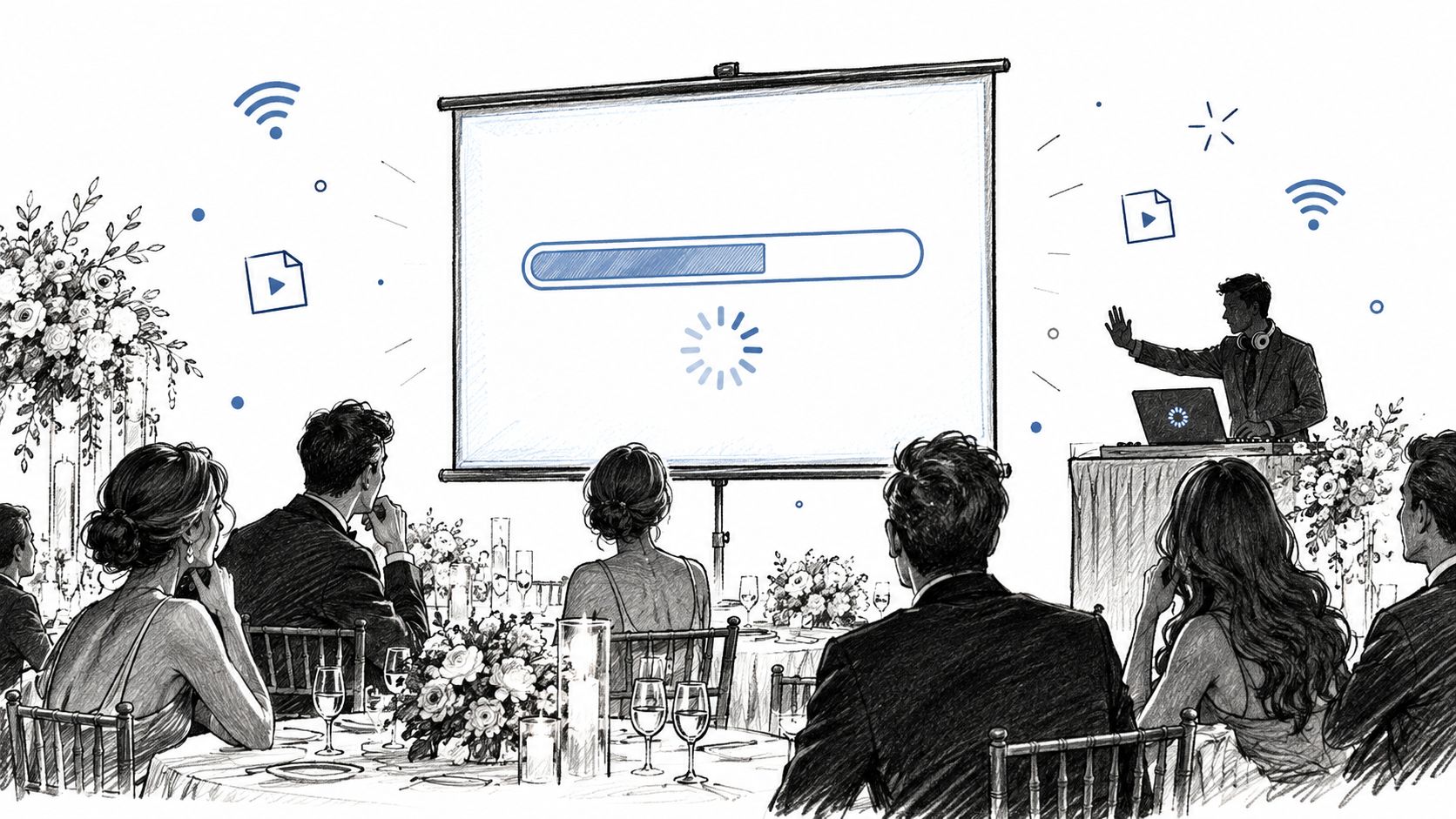
The lights drop. The DJ cues the song. On the projection screen, a loading bar freezes beneath a buffer icon while the couple watches the room turn toward them. Someone uploaded a large MOV file over hotel Wi-Fi, the playback app stopped responding, and the AV technician is already reaching for a cable.
That failure has little to do with whether the slideshow has beautiful transitions. Wedding slideshow software is an upload-to-display workflow, and the editing timeline is only one part of it. Guest uploads, moderation, file handling, venue hardware, network conditions, and recovery controls decide whether the reception moment feels personal or painfully improvised.
The right choice depends on who's operating the system. A DIY couple needs low-friction guest participation. A venue AV team needs predictable playback and failover. A multi-day planner needs separated event albums, durable upload windows, and capacity that survives the busiest day.
Table of Contents
- The Reception Moment That Changes How You Shop
- What Wedding Slideshow Software Actually Looks Like in 2026
- Feature Comparison Across the Main Categories
- Best Fit for DIY Couples Planning the Album Themselves
- What Venue AV Teams Need From a Live Slideshow
- Multi-Day Weddings and the Capacity Question
- Final Picks and the One Decision You Should Make First
The Reception Moment That Changes How You Shop
A slideshow can look perfect on a laptop and still fail in the room where it matters. The couple may have assembled a polished montage, but if guests can't upload without downloading an app, if nobody approves what appears publicly, or if the venue display depends on a fragile cloud stream, the finished video isn't the product. It's merely one asset inside a larger event system.
Current wedding slideshow tools cover a broad market, from browser editors and template platforms to desktop applications and live guest-photo galleries. A 2026 overview of wedding slideshow software categories describes this movement away from desktop-only editing toward browser-based and template-driven workflows, while established tools such as Adobe Express, Canva, Filmora, Movavi, and Clipchamp show that wedding creation is now a mainstream use case for general creative software.
The visible slideshow is only the final layer
A reliable workflow answers five questions before the first guest scans a QR code:
- How do guests contribute? A mobile browser link is easier than an app download, especially when relatives have different phones and technical comfort.
- Who approves the media? A public screen needs a review queue or controlled display feed, not an unrestricted folder.
- Where does playback happen? Cloud delivery simplifies setup, while local playback offers stronger resilience when the venue network becomes crowded.
- What files can the system handle? Original photos, phone videos, codecs, aspect ratios, and resolution all affect the result.
- What happens after failure? A second device, offline copy, or static fallback can save the reception when the primary path breaks.
The NCH PhotoStage slideshow product illustrates how established software has expanded beyond basic image sequencing. It supports wedding and other event slideshows, with output options including 4K and full HD formats such as 720p and 1080p. That makes export quality useful, but it still doesn't solve guest collection, approval, or venue recovery by itself.
Practical rule: Shop for the person responsible at the screen, not for the person who enjoys choosing transitions.
What Wedding Slideshow Software Actually Looks Like in 2026
The market is easier to understand when you stop treating every tool as a direct substitute. Four categories now serve four different jobs.
Browser-based editors handle last-mile assembly. A couple can drag photos into a timeline, add text, select music, and export without installing a desktop application. They're useful when the couple already has the curated files and wants to finish the presentation shortly before the wedding. They're less useful when the central challenge is gathering candid media from dozens of guests.
Storyboard-first desktop apps focus on control. They suit a photographer or videographer who needs precise timing, detailed motion, color adjustments, and dependable local rendering. A desktop workflow is the right home for a deliberately produced final cut, especially when an editor is delivering a finished file rather than collecting live uploads.
Template-driven platforms trade flexibility for speed. Preset themes, auto-fitting layouts, music beds, and guided sequences help couples produce something presentable quickly. They're a reasonable choice when visual styling matters more than live participation, but template polish shouldn't distract you from testing export quality and playback.
Live-event gallery tools treat the slideshow as a moderated stream. Guests scan a QR code, upload from a mobile browser, and send images into a review process before approved media appears on the reception display. This category addresses the operational problem most traditional editors ignore. Guidance on QR-code wedding photo sharing follows the same logic, focusing on collection and guest participation rather than editing alone.
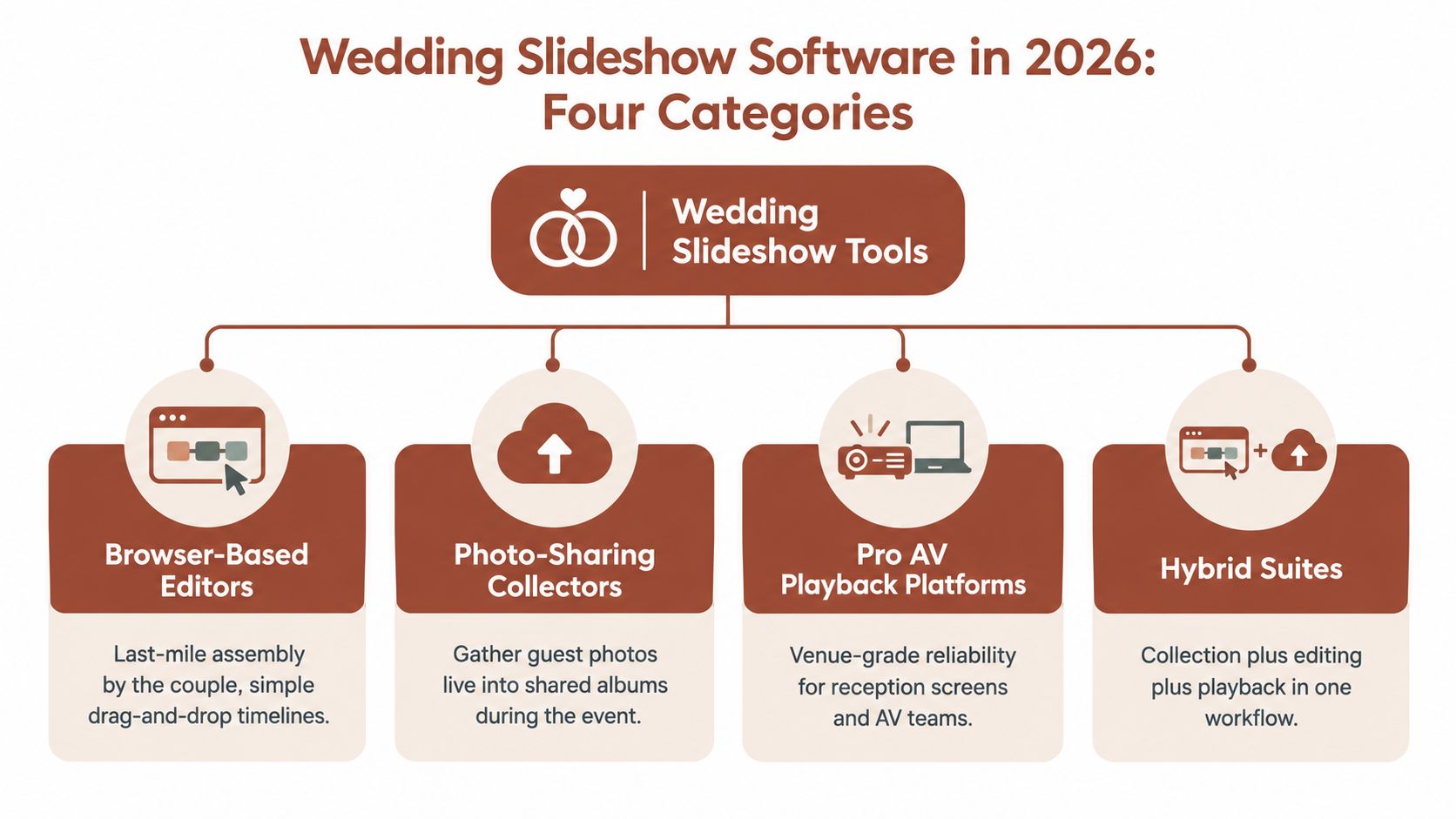
Match the category to the operator
These categories map cleanly to three operator profiles:
- DIY couples usually need an upload-first gallery with simple moderation and uncomplicated playback.
- Venue AV teams need a controlled display system, local resilience, and tested hardware paths.
- Multi-day planners need event segmentation, durable links, and storage that can handle several distinct upload peaks.
Hybrid suites can combine these functions, but combination doesn't guarantee operational quality. Ask which part of the workflow the product was designed to protect. A beautiful editor built around a single finished file isn't automatically a good live-event platform, and a guest gallery isn't automatically a venue-grade playback system.
Feature Comparison Across the Main Categories
The useful comparison isn't “which app has the prettiest templates?” It's whether the platform can move media from a guest's phone to a controlled display without creating extra work for the person running the event.
| Category | Guest Uploads | Live Moderation | Playback Mode | File Quality Limits | Pricing Model | |---|---|---|---|---|---| | Browser-based editors | Usually none, or manual file sharing | Usually none | Exported file, browser preview, or connected laptop | Depends on supported formats, export settings, and upload caps | Freemium or subscription | | Storyboard-first desktop apps | None by default | None by default | Local rendering and exported file | Stronger format, timing, crop, and output controls | One-time purchase or subscription | | Template-driven platforms | Link or manual upload in some products | Limited or product-dependent | Cloud preview or exported file | Often shaped by template, upload, and export rules | Freemium, subscription, or per-event | | Live-event gallery tools | QR code, mobile link, or browser upload | Approval queue or controlled display feed | Cloud display, browser playback, or supported local output | Depends on media policy, storage tier, and video handling | Per-event, one-time payment, or subscription | | Hybrid suites | Guest collection plus manual imports | Queue, album controls, or selective approval | Cloud and exported playback, sometimes local backup | Broader workflow, but limits vary by component | Tiered subscription or event pricing |
What the matrix reveals
Moderation depth rises with guest participation. An editor-first application can work beautifully when one person selects every file. Once guests contribute during the reception, the system needs approval controls, visibility settings, and a clear distinction between pending uploads and public display.
Cloud playback is simpler but more exposed. A browser-based display can reduce setup and make publishing fast. It also depends on the venue's connection, display device, and browser session. The 2026 comparison of digital-signage platforms highlights how playback products differ in hardware compatibility, remote recovery, and whether operators can confirm that content is running on the screen.
Feature depth deserves more weight than visual novelty. One independent comparison uses a 40/30/30 scoring model, assigning feature capability twice the weight of ease and value, and tests format support, transition control, audio synchronization, resolution, crop and pan controls, and motion behavior. Its slideshow software evaluation supports a practical conclusion for weddings: prioritize reliable file handling and timing before decorative themes.
For a polished, prebuilt montage, a wedding slideshow template can speed assembly. It won't replace moderation or venue testing when guests are contributing live.
Best Fit for DIY Couples Planning the Album Themselves
DIY couples usually don't need a more feature-rich editor. They need guests to participate quickly, and they need one person to approve media from a phone without learning production software during cocktail hour.
An editor-first workflow assumes the couple already owns the photos, has selected them, and can move them into a coherent timeline. That's a poor match for a live reception where guests are still taking pictures. A browser-based, upload-first gallery is the better choice because the guest journey starts with a scan, continues in the phone browser, and doesn't depend on an account or app installation.
| Criterion | Editor-First Apps | Upload-First Gallery Tools | |---|---|---| | Guest entry | Usually requires manual collection or shared folders | QR code or mobile browser link | | Couple's workload | Sort files before editing | Review submissions as they arrive | | Moderation | Often absent | Approval queue or display controls | | Playback | Exported file on a laptop or screen | Live approved gallery or slideshow | | Best use | Curated montage from known files | Candid guest participation during the event |
The DIY recommendation
Choose a browser-based live-event gallery tool with QR sharing, direct mobile uploads, a phone-friendly moderation queue, and playback that can run from a single HDMI-connected laptop. A free or flat-fee event tier is preferable because the couple is buying a wedding workflow, not committing to an ongoing editing subscription.
The guide to making a wedding slideshow is useful for the creative side, but the operational decision comes first. Test the upload link on several phones, approve a sample photo, reject one, and confirm that only approved media reaches the display.
The editor feature that doesn't justify a higher price for this audience is advanced motion-path animation. Guests won't care whether a photo follows a carefully designed pan curve if the submission process is confusing or an unapproved image appears on-screen. Spend the budget on frictionless uploads, moderation, and dependable playback.
What Venue AV Teams Need From a Live Slideshow
Venue AV teams should treat a wedding slideshow like a small live production, not like a browser tab someone hopes will stay open. The operator needs a known playback machine, a tested signal path, and a recovery plan that doesn't depend on the couple finding a password while guests are watching.
Start with the hardware path
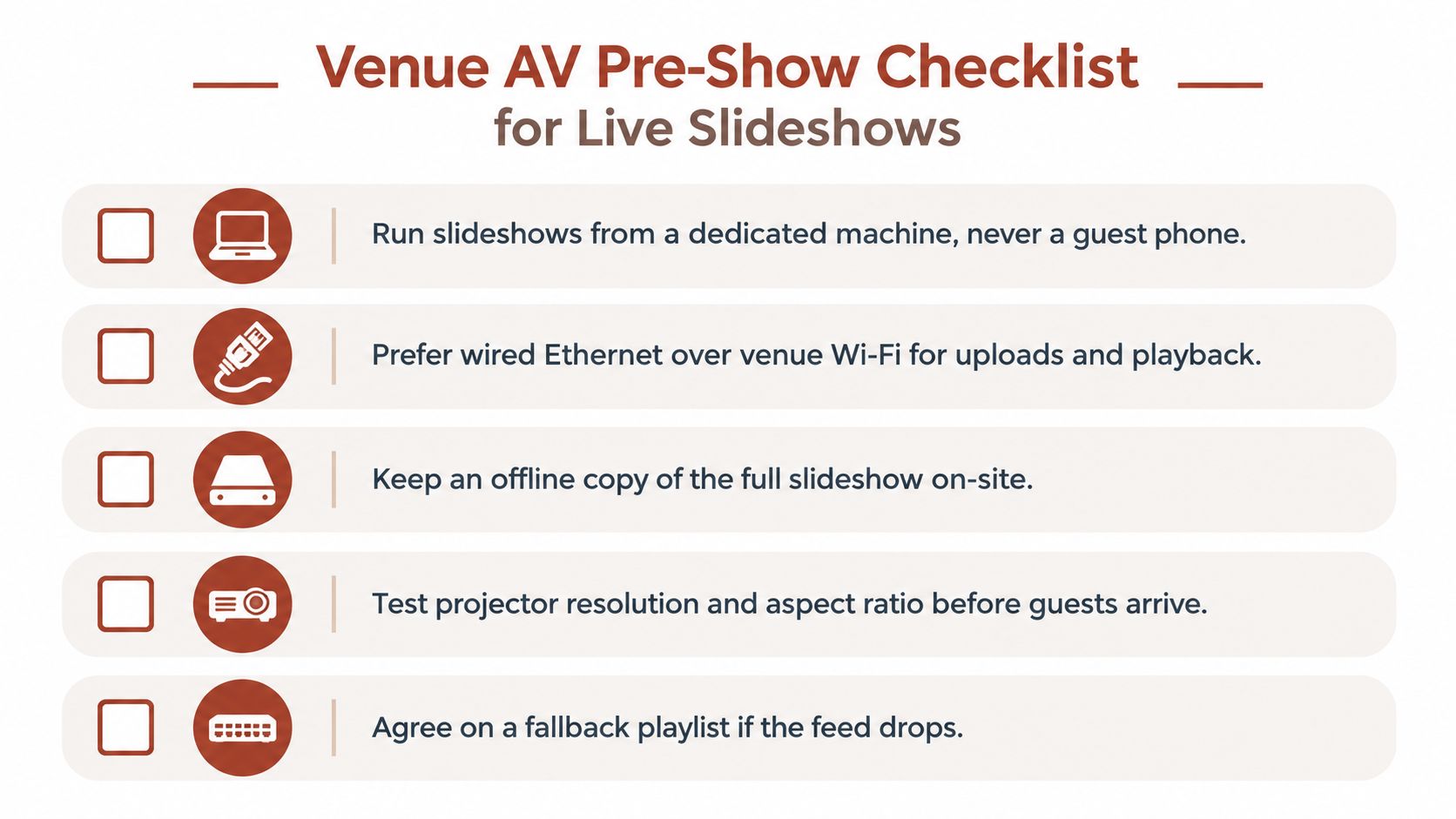
Use a dedicated playback machine. Don't run the presentation from a guest phone, the DJ's general-purpose laptop, or a computer handling unrelated downloads. Match the output resolution and aspect ratio to the projector or LED wall, then test the complete HDMI or SDI path with representative photos and videos.
Keep a second device loaded with the same timeline or offline copy. A venue live-slideshow workflow should be evaluated not only for authoring and moderation, but also for what happens when the primary browser, display device, or connection fails.
Make the network predictable
Provide a wired Ethernet fallback for the playback machine whenever the venue allows it. Guest uploads need bandwidth headroom, but the display shouldn't compete directly with every phone on the main network. A separate guest network or hotspot can reduce interference, provided it doesn't trap guests behind a captive portal that fails inside the upload flow.
Then test the display under realistic conditions. Confirm that the slideshow continues when an upload is slow, that a rejected file doesn't interrupt playback, and that the system can show a static logo or fallback playlist instead of freezing on the last frame.
Put recovery on paper
The tablet moderator needs controls that work quickly, including approve, reject, hide, and pause. The run-of-show should mark the slideshow cue, identify the operator, and specify the fallback source. A second device should be physically available, not merely promised in a cloud dashboard.
The trait separating pro-grade tools from consumer apps is operational observability. A professional system tells the team what is playing, where it is playing, and how to recover when it isn't. Remote reboot alone isn't enough if nobody can confirm the display has resumed the correct content.
Multi-Day Weddings and the Capacity Question
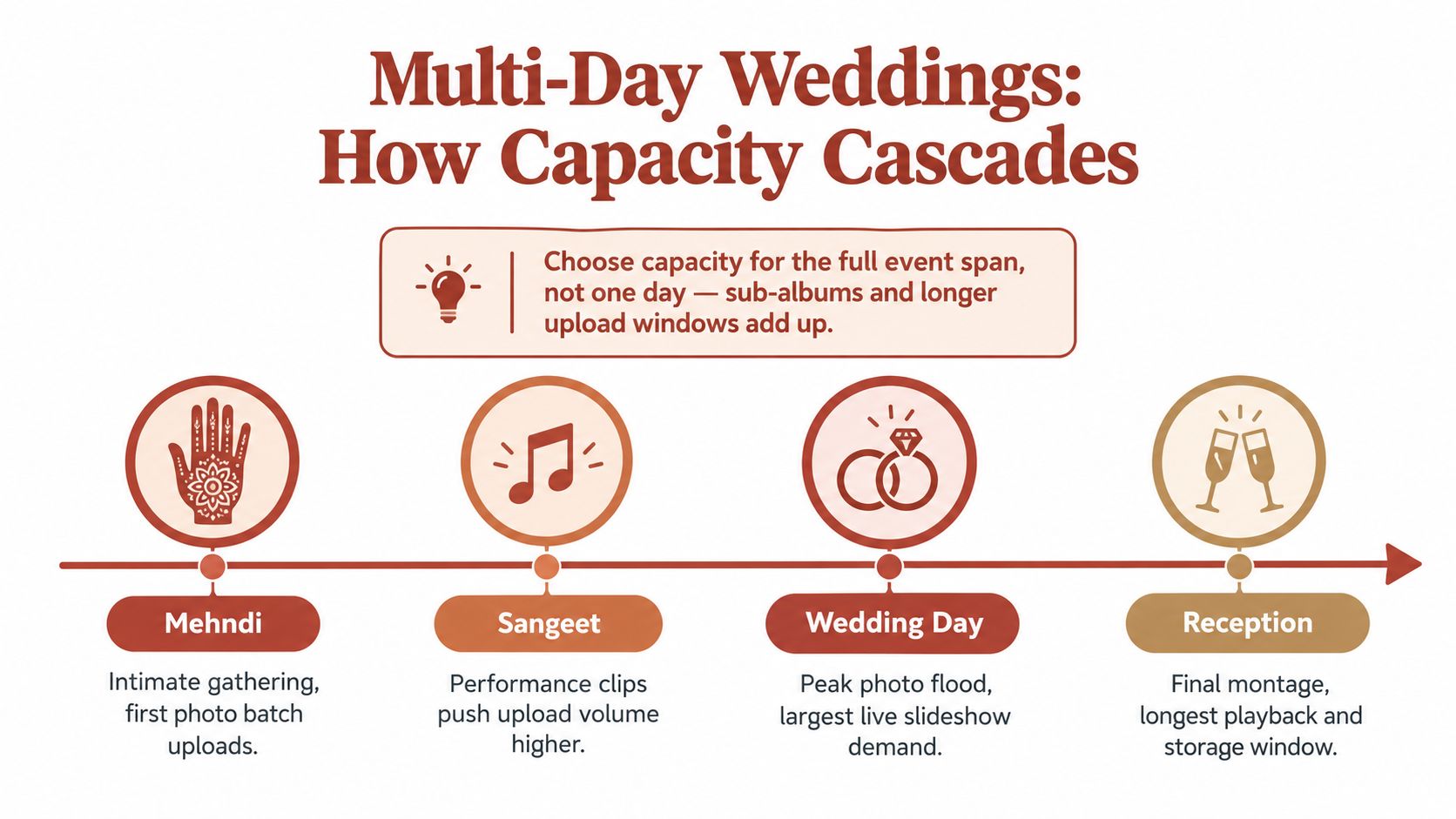
A multi-day wedding shouldn't produce one undifferentiated stream. Mehndi, sangeet, wedding-day ceremonies, and the reception create different audiences, moods, and photo sets. Combining everything into one feed makes moderation harder and weakens the final display because the operator loses control over sequence and context.
Use named sub-albums for each event. The planner should be able to keep uploads separated, review them independently, merge selected media later, and play the appropriate collection at the right moment. A live gallery that can't distinguish pre-wedding uploads from reception photos will force someone into manual sorting when the schedule is already busy.
Size the plan around the peak
Start with the busiest event, not the average event. Estimate how many guests may contribute at the same time, estimate the typical photo size, then add room for video clips and late uploads. The plan must survive the highest single-day demand without throttling, even if earlier events have already consumed storage.
Also check the lifespan of the upload link. Multi-day celebrations need links that remain active across the entire schedule, not invitations that expire after the first gathering. Storage duration matters too, because the planner may need to moderate after the reception, export originals, and preserve the event archive.
The multi-day recommendation
Choose a hybrid gallery platform with sub-albums, extended upload windows, tiered storage, and separate display controls. The capacity feature that drives this recommendation is the ability to treat one wedding as a connected event span while maintaining distinct collections for each celebration.
A useful system lets the planner open uploads before the first event, route contributions into named albums, publish only approved media, and export the complete archive afterward. That workflow protects the live display and makes the post-wedding handoff manageable.
Final Picks and the One Decision You Should Make First
The first purchase decision is not the template, resolution, or music library. It's who will run the slideshow at the venue: the couple on a laptop, a friend on a phone, or the venue's AV crew from a production setup.
| Operator Profile | Recommended Tool | Defining Features | Price Tier | |---|---|---|---| | DIY couple | Browser-based guest-upload gallery | QR sharing, app-free uploads, phone moderation, live approved display | Free or flat-fee event tier | | Venue AV team | Live-event gallery with professional playback controls | Native display output, local caching, moderator queue, failover support | Per-event or professional tier | | Multi-day planner | Hybrid event gallery | Sub-albums, extended upload windows, tiered storage, separate display controls | Tiered event plan | | Style-first couple | Template-driven editor | Preset layouts, auto-fit, music beds, fast export | Freemium or subscription |
The three clear routes
DIY couples should choose an upload-first browser gallery. QR entry and app-free uploads remove the biggest guest obstacle, while a moderation queue lets the couple control the public feed from a phone. The Wedding Pics is one example of this approach, offering QR-based browser uploads, a private album, real-time approval controls, original-quality file preservation, and live venue slideshow options on paid plans.
Venue AV teams should choose a live-event gallery with a local or cached playback path. Native output, moderator queueing, offline resilience, and a second-device workflow matter more than decorative editing controls. If the platform can't explain what happens during a network interruption, it isn't ready for a reception screen.
Multi-day planners should choose the hybrid option with event-level organization. Sub-albums, longer upload windows, storage tiers, and independent display controls prevent one day's media from overwhelming another. This is the only profile where capacity and album architecture should outrank fast template assembly.
The close call is between an upload-first gallery and a template-driven platform. Choose the template platform when the couple already has all media and cares more about stylized transitions than guest contributions. Choose the gallery when the slideshow is meant to collect the reception as it happens. Those are different jobs, and no theme preset bridges the gap.
Before you pay, answer three questions:
- Who operates playback during the reception?
- Do guests need to contribute live, or is the media already curated?
- What is the failure plan if the venue connection or primary device drops?
If those answers point to guest collection and controlled display, visit The Wedding Pics to review its QR uploads, moderation workflow, private albums, and live slideshow options. Set up a test album before the wedding, scan the guest link from multiple phones, approve sample media, and run the display through the exact hardware your venue will use.
- wedding slideshow software
- wedding photo sharing
- QR code wedding album
- live slideshow
- guest photo app