Event QR Code Setup for Weddings: From Sign to Album
Set up an event QR code for wedding photo uploads, live slideshows, and private galleries. Covers design, signage, guest flow, and moderation.
From first scan to shared album
See event qr code setup for weddings: from sign to album from the guest’s side.
Set up an event QR code for wedding photo uploads, live slideshows, and private galleries. Covers design, signage, guest flow, and moderation.

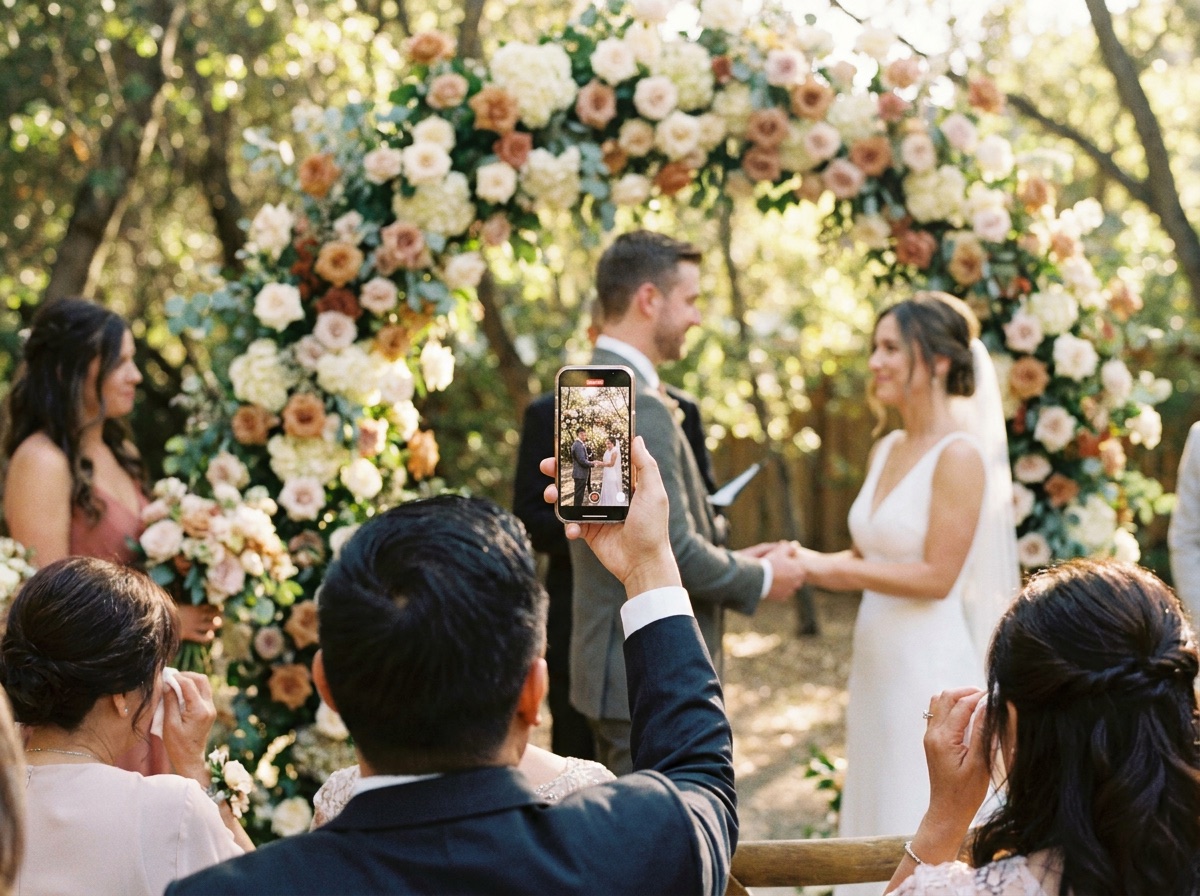




By the time the first dance starts, your guests have already taken hundreds of photos. A few are sitting in a family group chat, others are buried in private messages, and the best candid moment may still be trapped on a phone nobody remembers to send.
That's why an event QR code should be treated as more than a clever sign. It's a complete guest-photo workflow, from the first scan to the upload page, moderation queue, private gallery, and live slideshow. The code only points guests in the right direction. Your settings decide who can contribute, what gets displayed, and how long you keep control of the files.
Table of Contents
- Why Couples Are Putting QR Codes on Every Wedding Surface
- Generating Your Event QR Code and Upload Page
- Designing Cards and Signage That Guests Actually Scan
- The Guest Scan to Upload Flow Without an App
- Privacy, Moderation, and Access Settings Worth Setting Now
- Wiring a Live Slideshow Into the Same QR Workflow
- Your Pre-Event Event QR Code Checklist and Signage Copy
Why Couples Are Putting QR Codes on Every Wedding Surface
Reception problems appear fast. One partner is searching several group chats, the other is asking relatives to resend photos, and the dance floor is filling with moments a photographer cannot capture from every angle. A dedicated event QR code gives guests one clear route for sending images instead of scattering them across private conversations.
QR codes have a longer history than wedding signage. A Japanese team at Denso Wave invented them in 1994 to track automobile parts, and they became an ISO international standard in 2000. Contactless habits during the COVID-19 era pushed QR codes further into payments, marketing, and event workflows. Reported global scans reached 41.77 million in 2024, a 433% increase over the prior three years, according to QR Code TIGER's adoption statistics.
The wedding value is practical. A QR code connects a physical sign, table card, or program to an action on a guest's phone. Guests do not need to search for a username, join a group, or install an app. They scan, select a photo, and return to the celebration.
Practical wedding use cases
Event marketing has already made QR scanning familiar. A 2025 survey summary reported that 43% of marketers use QR codes for events, while 49% link them to event information or registration. Consumer behavior points in the same direction, with 31% of consumers scanning QR codes to access event tickets, according to Wave Connect's QR code statistics.
For weddings, use the code to manage the whole guest-photo operation:
- Guest uploads: Collect candid photos and videos in one album.
- Photographer handoff: Give the photographer one place to review guest perspectives after the reception.
- Live display: Send approved images to a slideshow without putting every upload on screen.
- Multi-day coverage: Keep welcome drinks, ceremony events, reception photos, and farewell brunch uploads under one destination.
- No-app access: Let guests upload through a browser, including relatives who will not download another app.
Place signs where guests pause, not where lighting makes scanning difficult. A dim reception corner, glare on glossy cardstock, or a code hidden behind floral décor can cut participation before the guest reaches the upload page. Test every placement with the actual lighting and viewing distance.
Planner's rule: The QR code should answer three questions immediately: what should I do, where will my photo go, and who can see it?
Control settings before the first guest scans. Decide whether uploads enter a moderation queue, whether a PIN protects the album, whether names are collected, and whether guests can download original files. For a live slideshow, require approval before display and confirm that approved images sync reliably. A wedding QR code works when it manages trust as well as access.
Where wedding photos actually end up without a QR code
Without a shared destination, the recovery problem remains consistent. Photos spread across services that the couple may not control, making them harder to find, review, and preserve.
| Photo Destination | Approximate Share | Recovery Friction | |---|---|---| | Family and friend group chats | Varies by guest | Photos are split across multiple threads and may be compressed | | Direct messages | Varies by guest | Someone must remember whom to message after the event | | Camera rolls | Varies by guest | The couple may never receive the images | | Social media posts | Varies by guest | Visibility depends on account settings and platform access | | Photographer's delivery gallery | Professional coverage only | Guest perspectives and informal moments may be missing |
Generating Your Event QR Code and Upload Page
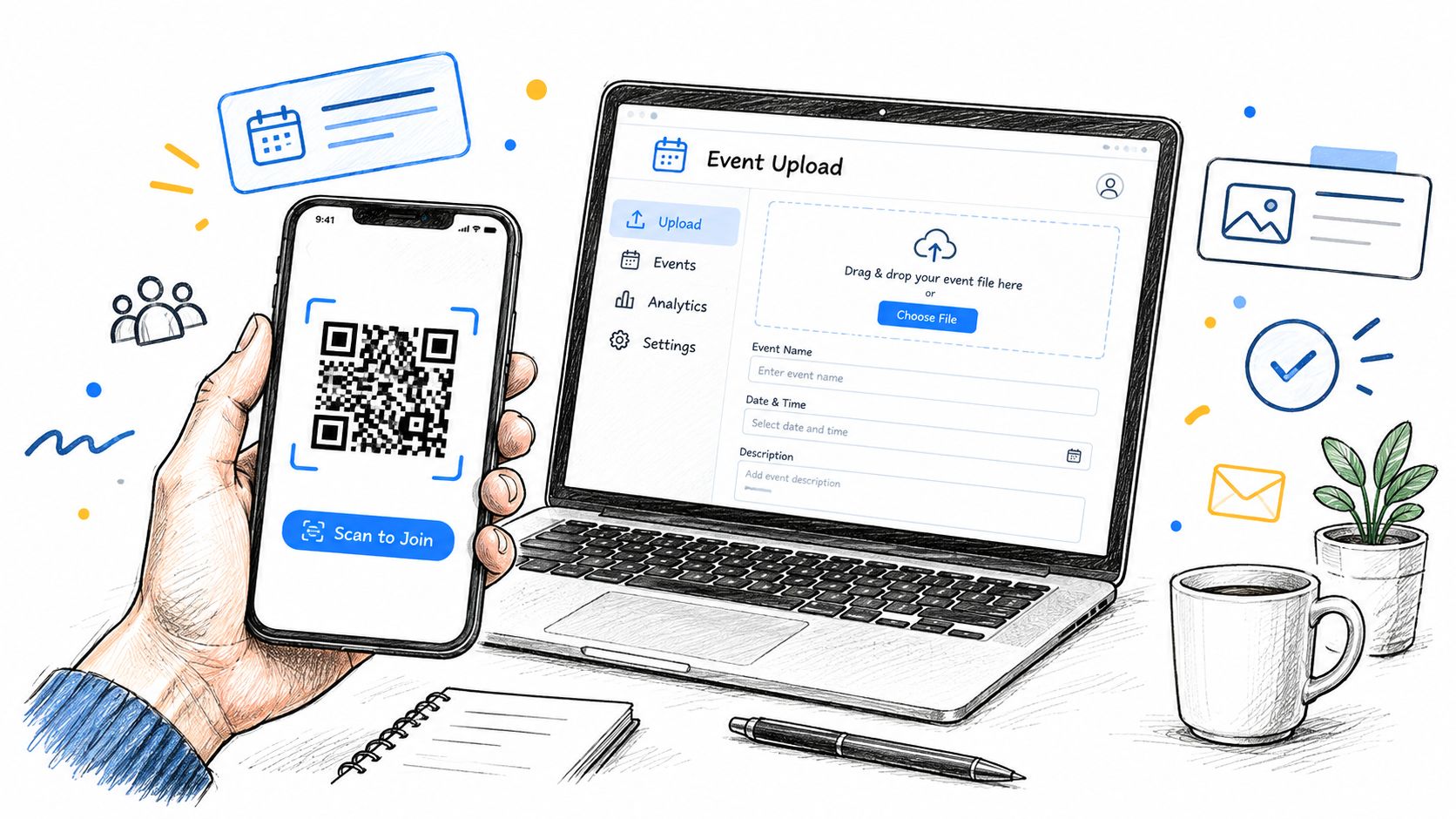
Start with the destination, not the artwork. Choose a platform that creates a guest upload page, supports browser uploads, and gives you control over album visibility and moderation. A standalone QR image only encodes a destination. It doesn't automatically create the privacy rules or review process your wedding needs.
The Wedding Pics is one browser-based option that generates a wedding QR code for guest photo and video uploads without requiring guests to install an app or create an account. You can review its wedding QR code generator alongside other event album tools before committing.
Static or dynamic code
A static QR code stores the destination URL directly. It's simple and can work well when the upload address is permanent. The drawback is obvious, you can't redirect the printed code if the page changes.
A dynamic QR code points to a redirecting destination that you can update later. That gives you flexibility if the upload page, event settings, or platform changes before the wedding. For a wedding, I prefer dynamic codes when the tool supports them, especially if signs are being printed well ahead of the event.
Configure the guest page before downloading the code
Give the page a clear event name and a short welcome message. “Share your favorite wedding moments with us” is more useful than a blank upload screen because guests know they reached the right place.
Set the accepted file formats and upload limits based on what your guests will send. HEIC, JPG, and PNG cover common phone photos, while video settings need separate attention because large files behave differently on weak connections. Decide whether guests must enter their names. Name capture helps with context, but it adds friction, so use it only if you need attribution.
Test the page in iOS Safari and Android Chrome. Camera permission, photo-library access, in-app browsers, and file pickers can behave differently. If your platform offers an offline or retry fallback, understand exactly what it does before promising guests that uploads will work without a connection.
Before printing, confirm:
- Destination: The code opens the correct upload page.
- Event identity: The couple's names and event details are visible.
- Access: PIN, invite-only, or unlisted settings work as intended.
- Moderation: New uploads stay out of the slideshow until approved.
- Formats: Common photo and video types are accepted.
- URL behavior: A dynamic redirect won't expire before the event.
- Print file: You have a high-resolution PNG or SVG, not a screenshot.
Designing Cards and Signage That Guests Actually Scan
A beautiful QR card that fails under candlelight is still a failed card. Design the code for recognition first, then add the wedding colors around it.
Keep a strong dark-on-light contrast. Preserve the quiet zone, the blank space surrounding the code, because text, borders, logos, and decorative patterns placed too close can interfere with detection. Don't put a gradient through the modules, add a drop shadow across the edges, or let a floral illustration overlap the corners.
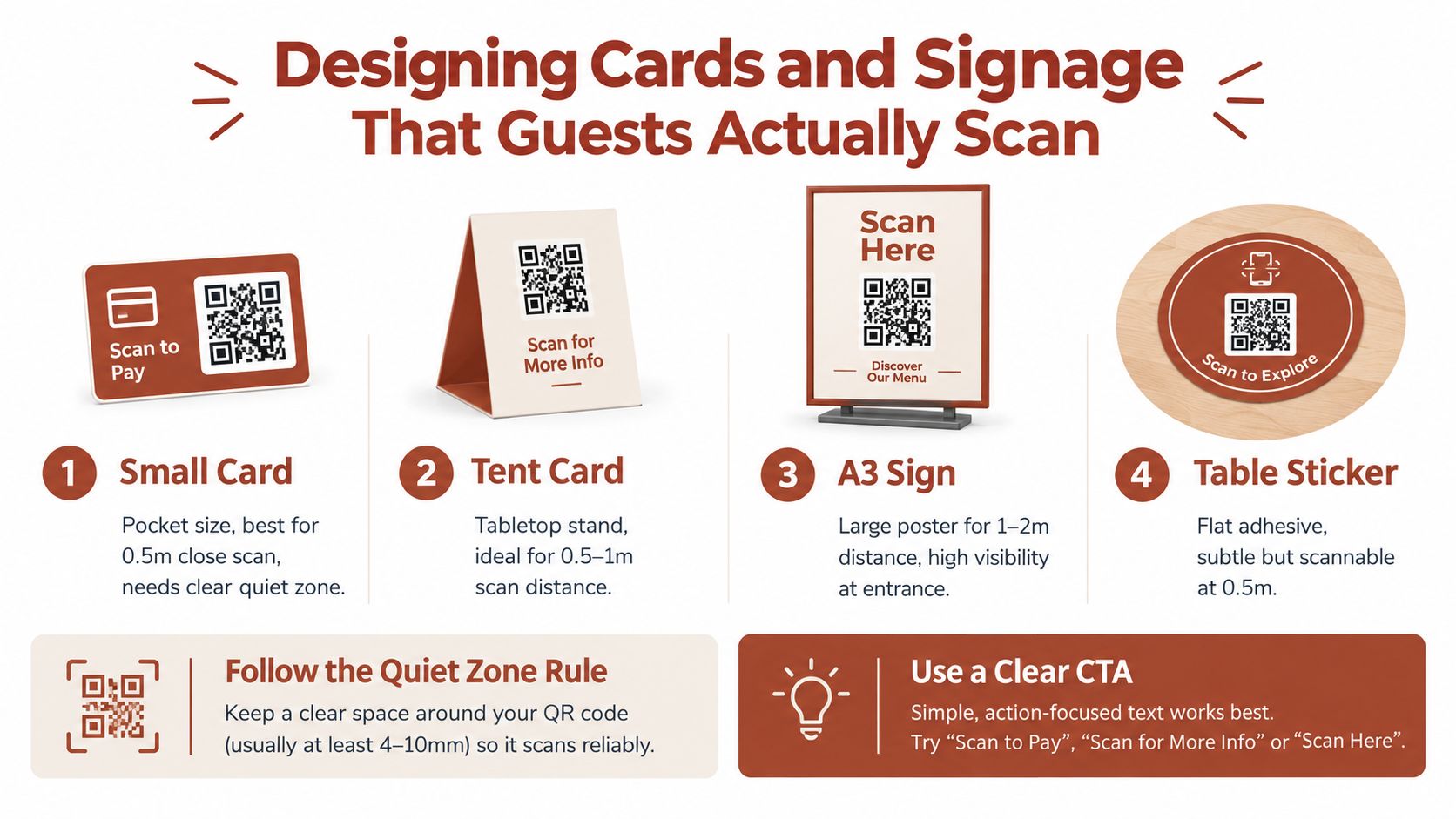
QR codes also need to match the distance from which guests will scan. A small card works for a guest holding a phone close to the table, while an A3 sign needs a larger code for people approaching from across an entrance area. The event operations guidance from Supercode's event QR code guide recommends validating the code on real attendee devices under venue lighting 3 to 7 days before the event and using at least 2.5 cm × 2.5 cm for arm's-length print scans. It also warns that cropping or printing over the quiet zone causes scan failures.
Match the format to the pause point
- Small card: Best beside a place setting or guest book, where people naturally hold their phones close.
- Tent card: Strong for bars and dinner tables because it stands upright and remains visible from several seats.
- A3 sign: Use at entrances and welcome areas where guests need to understand the action before moving on.
- Table sticker: Useful as a secondary reminder, but don't make it your only sign because glare, wrinkles, and low placement reduce visibility.
The call to action matters. Event-focused guidance reports that clearer CTAs can raise scan rates by up to 37%, and Trade Show News Network's QR marketing guidance recommends connecting scans to an analytics or CRM workflow rather than treating raw scan volume as the outcome.
“Scan here” gives guests no reason to act. Use language that describes the benefit:
Scan to share your photos. They'll appear in our wedding album.
Place the main sign at arrival, another near the bar, and one beside the guest book. Guests pause in those locations. A code hidden behind the centerpieces or printed on a dark favor tag is decoration, not a workflow.
For ready-made layouts, you can compare wedding photo QR sign templates before sending files to your printer.
The Guest Scan to Upload Flow Without an App
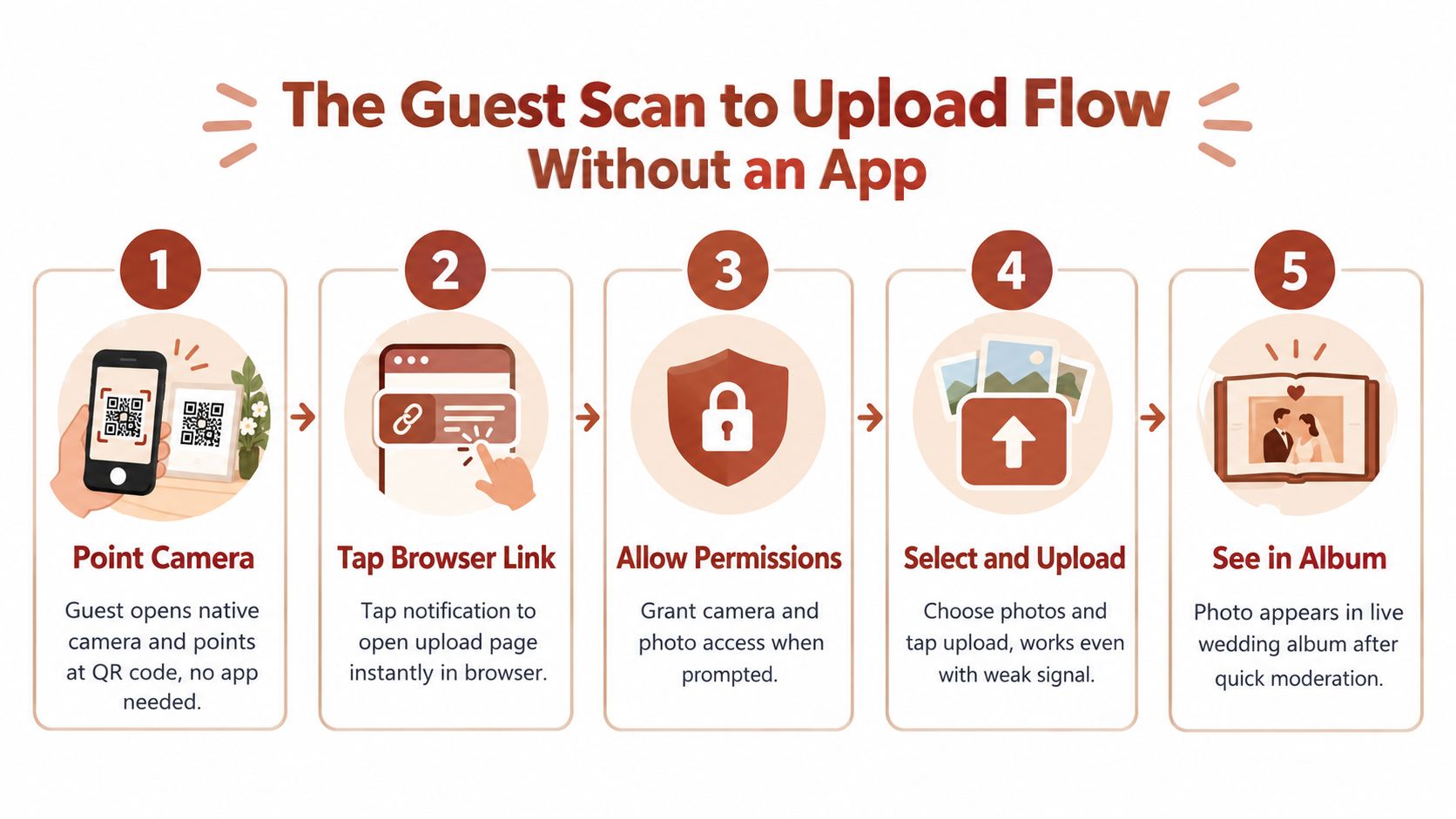
The guest journey should feel finished in under a minute, even if the file itself takes longer to upload. A guest points the native phone camera at the event QR code, waits for the link notification, and taps it. The upload page opens in a browser, usually Safari on an iPhone or Chrome on an Android phone, although some guests may arrive through an in-app browser from a messaging or social platform.
The page should identify the couple immediately. If guests see an unexplained upload form, they may close it because they aren't sure whether the code is legitimate. Add a short instruction beside the upload control, such as “Choose photos from your camera roll. You can upload more than one.”
Remove the small points of hesitation
The page may request permission to access the camera or photo library. Explain the reason beside the prompt, not in a separate help document. “Allow photo access to choose moments from your camera roll” is clearer than leaving guests to interpret a system message.
A thumb-friendly file picker matters on a crowded dance floor. The upload page should make it easy to:
- Choose a file: Open the camera roll without forcing guests through several menus.
- Take a fresh photo: Offer a camera option for guests who want to capture the current moment.
- Retake: Let guests remove a blurry image before sending it.
- Retry: Keep the selected file available if the connection drops.
- Confirm success: Show the couple's names and a clear completion message.
Venue connectivity is where polished plans meet reality. A crowded room can have patchy Wi-Fi, a venue network may throttle traffic, and some guests will use cellular data instead. Don't assume a failed upload will be retried. Guests move on after the first error, especially when dinner or dancing is underway.
Test the page on the actual venue network, but also test it over cellular data. Ask the venue whether the guest network uses a captive portal that requires a browser sign-in. If it does, place a small note on the upload page telling guests to switch networks or use cellular data when the page stalls.
You can review a browser-based no-app wedding photo sharing solution when comparing the guest experience across platforms.
Privacy, Moderation, and Access Settings Worth Setting Now
A private event QR code isn't private because the image looks discreet. It's private because the upload page and gallery have deliberate controls.
At a wedding, the audience is mixed. Children may use a parent's phone, vendors may walk past a display, and guests may upload photographs that are funny to them but unsuitable for a public slideshow. Someone may also share the gallery link outside the invite list. You need a decision for each situation before the first scan.
The settings I configure first
Use a PIN when the album should be limited to people physically connected to the event. Print it beside the QR code, not only at the welcome table. Guests who find the sign at the bar shouldn't have to walk across the venue to ask for access.
Turn on a moderation queue by default. New uploads should wait for approval before appearing in a gallery or live slideshow. This gives the couple or coordinator a chance to remove blurry, duplicate, off-topic, or uncomfortable images without creating a public incident.
Decide whether guests can download files. A clean viewer mode works well when the couple wants to review the collection first. Couple-only downloads provide a stronger boundary when original-quality files are being preserved for later use.
Set an auto-expiry rule for the upload page after the collection period ends. Keeping an upload link open indefinitely invites unwanted additions and makes it harder to define the album's ownership period.
Privacy rule: If a setting controls visibility, leave it closed until you have a specific reason to open it.
The configuration most couples settle on is straightforward, a PIN for guest access, moderation before display, guest viewing without unrestricted downloads, couple-controlled downloads, and an expiry date after the post-wedding collection window. The setting that most often backfires is open, unmoderated display. It turns every guest upload into a public decision made by someone else.
Recommended privacy and moderation settings for a wedding QR album
| Setting | Typical Choice | Why It Matters | |---|---|---| | Guest access | Optional PIN or invite-only viewing | Keeps casual link sharing from becoming uncontrolled access | | Upload approval | Moderation required | Prevents unsuitable or accidental uploads from reaching the gallery | | Guest names | Optional name capture | Adds context without forcing every guest through a longer form | | Guest downloads | Limited or disabled | Protects the couple's review process and original files | | Couple downloads | Enabled | Preserves a controlled archive of approved memories | | Album expiry | Closed after the agreed collection period | Stops late uploads and keeps ownership boundaries clear | | Slideshow source | Approved photos only | Ensures the venue display matches the couple's standards |
Wiring a Live Slideshow Into the Same QR Workflow
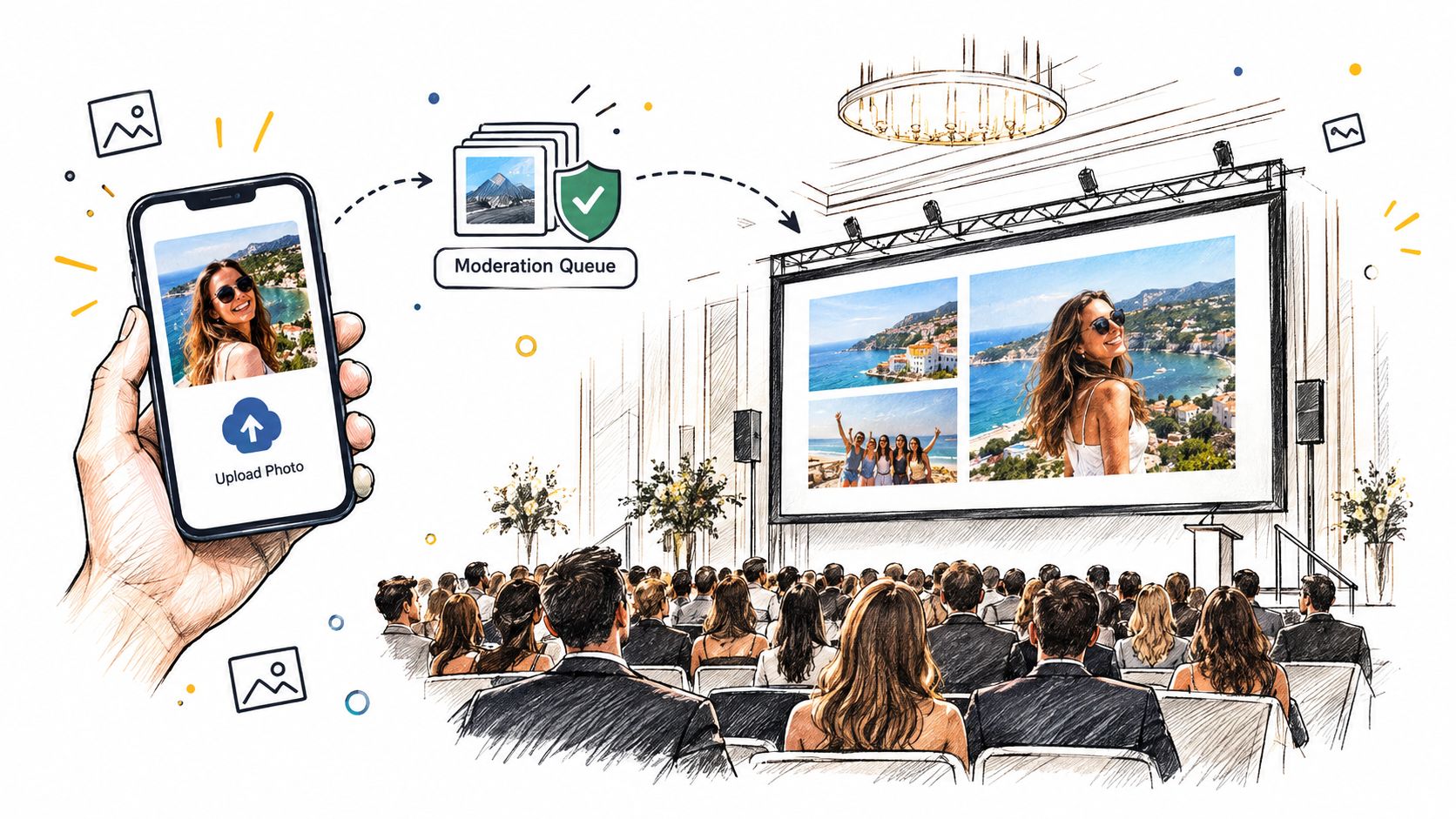
A live slideshow should show approved uploads, not the raw contents of the inbox. The clean flow is simple: a guest scans the event QR code, uploads a photo, the couple or coordinator reviews it, and the approved image enters the slideshow playlist.
The difficult part is keeping the screen polished when uploads arrive unevenly. During the ceremony-to-dinner gap, the gallery may be nearly empty. During dancing, several images may arrive together. Configure the display to use approved photos only, and keep a fallback loop of the couple's own images ready so the screen never looks abandoned.
Build the display around the room
Put the screen where guests can see it without turning the reception into a presentation. Near the bar often works because people naturally pause there, but avoid placing it directly behind the dance floor if movement will block the view. A venue projector can work well when the wall is clean and the room can be darkened. A dedicated laptop connected by HDMI is usually easier to troubleshoot than a complicated streaming setup.
Use a device that can stay connected to power. Disable sleep mode, silence system notifications, and open the slideshow before guests arrive. If the venue supplies the projector, confirm the input source and cable compatibility during setup, not during the first toast.
The upload-to-display delay should reflect your moderation capacity. If one person is reviewing uploads, don't promise that every guest photo will appear instantly. A short approval queue protects the couple and keeps the slideshow coherent.
Diagnose the failures before they happen
Faded or wrinkled cards stop working when the modules lose contrast or the paper bends. Use a durable finish, and replace cards that become wet, creased, or unreadable during the reception. If the code is printed on a sticker, check it again after it has been handled.
Competing QR codes create hesitation. A favor tag may point to a menu, the bar sign may point to a playlist, and the table card may point to the album. Use one universal guest-photo code and add a short, readable URL as a backup. Guests should never have to guess which code is the “right” one.
Sunset and candlelight reduce scan reliability. Raise contrast, enlarge the code modules, and keep the card away from backlit glass. Don't rely on a warm, low-contrast design just because it matches the stationery.
Wi-Fi collapse needs a fallback, not a pep talk. Keep a phone-as-modem option available, or use a dedicated hotspot that the coordinator can activate when the venue network becomes unreliable. If the venue network throttles traffic, guests may see cached pages, stalled uploads, or retry loops. The upload page should preserve selected files where possible and give a visible retry action.
Permission blocks are common when a guest has disabled camera access, denied photo-library access, or has low storage. Put a short instruction beside the control, and give guests a way to choose an existing file instead of insisting on a fresh camera capture.
Odd redirects make guests suspicious. Test every shortened URL and dynamic redirect on iPhone and Android. If it opens an unexpected browser tab, asks for an unfamiliar sign-in, or lands on the wrong event, replace it before printing.
PIN sheets at the welcome table create unnecessary queues. Print the PIN beside the code on every primary sign, or use a clearly visible line such as “Album PIN: 4827.” The exact PIN should be private to the event, but guests shouldn't need staff intervention to find it.
For the slideshow itself, keep a backup HDMI cable and a tethered hotspot with the coordinator. The wedding live slideshow solution can be assessed as one way to connect approved guest uploads to a venue display.
The five-minute pre-show triage
Before the slideshow goes live, the coordinator should:
- Scan the sign: Confirm the code opens the correct page.
- Upload a test photo: Use a coordinator phone and verify the success state.
- Approve the test: Confirm the image reaches the approved gallery.
- Check the display: Verify the slideshow shows the approved image and fallback loop.
- Test the backup: Confirm the hotspot and HDMI connection are available.
- Brief the team: Assign one person to moderation and another to guest questions.
If the display goes black during the first dance, don't troubleshoot the entire system in front of guests. Switch to the fallback loop, reconnect the display using the backup cable, then restore the live feed once the connection is stable.
Your Pre-Event Event QR Code Checklist and Signage Copy
Print the code only after the workflow works on real phones. The design can be adjusted later, but a destination or permission problem discovered after printing creates avoidable stress.
T-minus seven days
- Test devices: Scan and upload from an iPhone, an Android phone, and a third phone used by the coordinator.
- Confirm the destination: Check the event name, upload page, gallery, and success message.
- Set access controls: Add the PIN, enable moderation, confirm download permissions, and set the expiry rule.
- Lock the display: Open the slideshow URL and test the approved-photo flow on the actual display device.
- Prepare backups: Print spare cards, save the QR asset on the coordinator's phone, and pack a hotspot and HDMI cable.
- Brief the coordinator: Explain who approves uploads, where the PIN appears, and what to do when a guest can't scan.
Copy for the printed materials
5x7 table card
Scan to share your photos
They'll appear in our wedding album and may join the slideshow tonight.
No app or account needed.
Album PIN: [PIN]
A-frame welcome sign
Capture the moments we miss
Scan the event QR code to upload your favorite wedding photos and videos.
Please share only images you're comfortable contributing to the private wedding album.
Bar-front poster
Got a great photo? Send it our way.
Scan to upload from your phone. Approved photos will appear on the slideshow.
Farewell brunch version
Keep the weekend in one album
Scan to add photos from the brunch and the rest of the celebration.
For older guests or parents who prefer not to share, add a quiet line: “Sharing is optional. You're welcome to view the album without uploading.”
Keep the QR code, CTA, PIN, and short URL together. Don't separate the instructions across different signs. A printable card template should leave generous white space around the code, use high contrast, and make the action readable from the guest's natural pause point.
The Wedding Pics can provide ready-to-print QR card assets and a browser upload flow for couples who want one private album across wedding events. Visit The Wedding Pics to set up a controlled guest-photo workflow, test the upload path, and connect approved memories to your reception slideshow.
- event qr code
- wedding qr code
- guest photo upload
- qr photo album
- wedding signage