Photo Albums Sharing for Events That Guests Actually Use
Master photo albums sharing for events — create, share, moderate and preserve original-quality guest photos with QR uploads, privacy controls and live
From first scan to shared album
See photo albums sharing for events that guests actually use from the guest’s side.
Master photo albums sharing for events — create, share, moderate and preserve original-quality guest photos with QR uploads, privacy controls and live
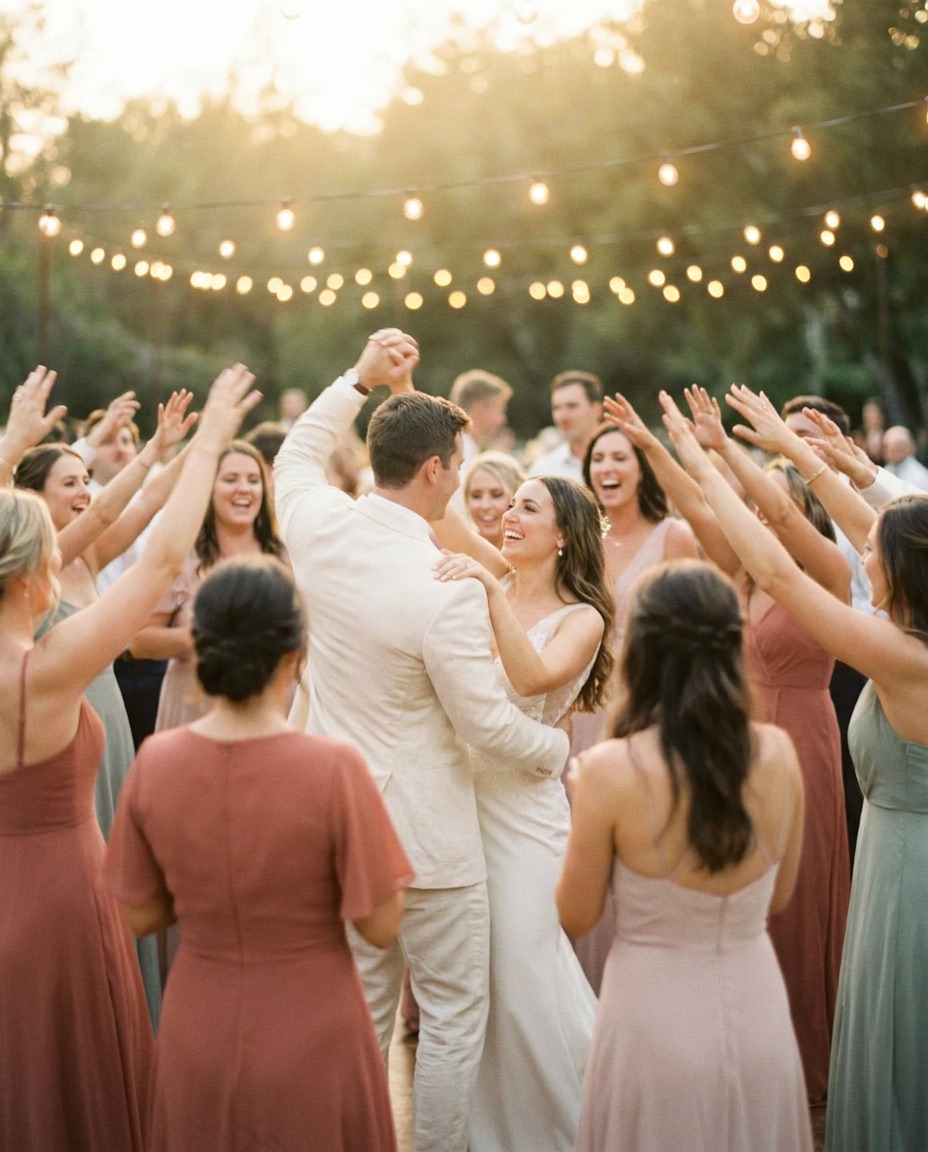
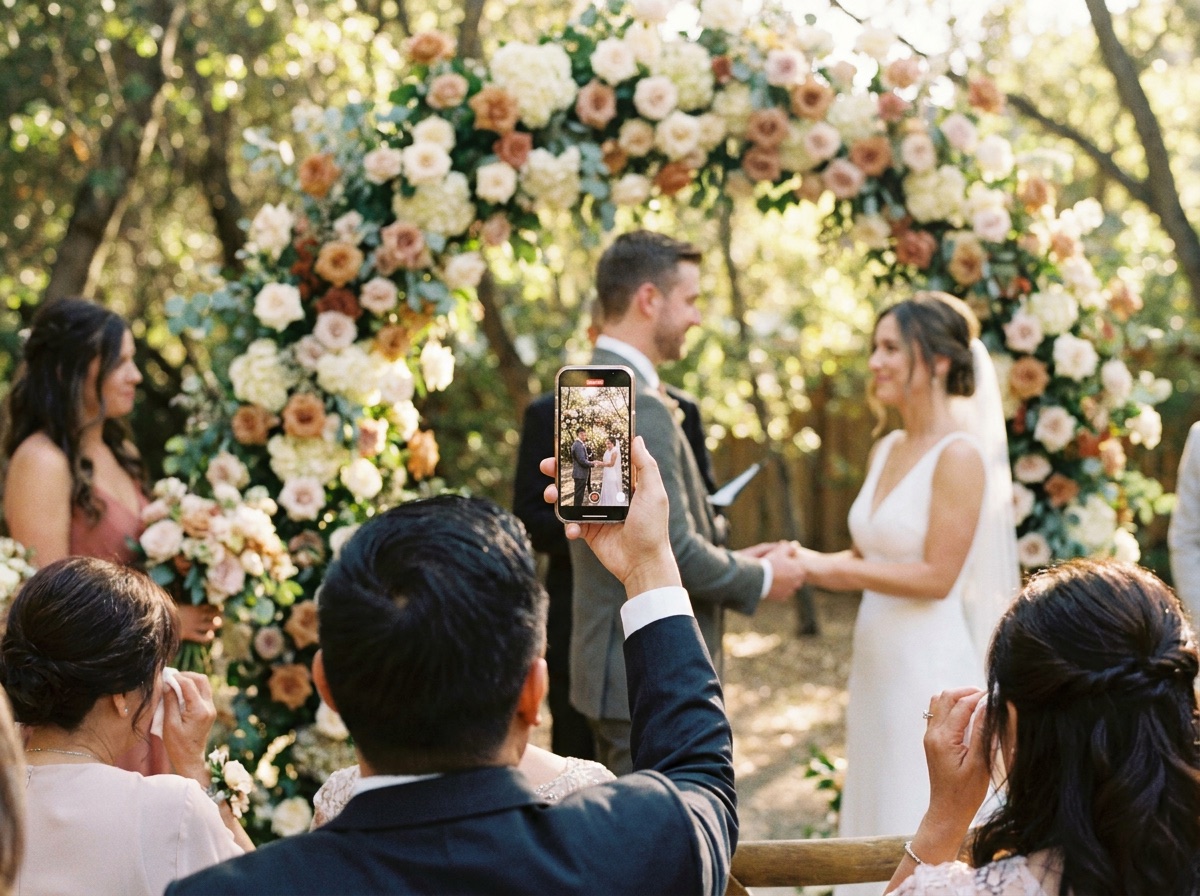

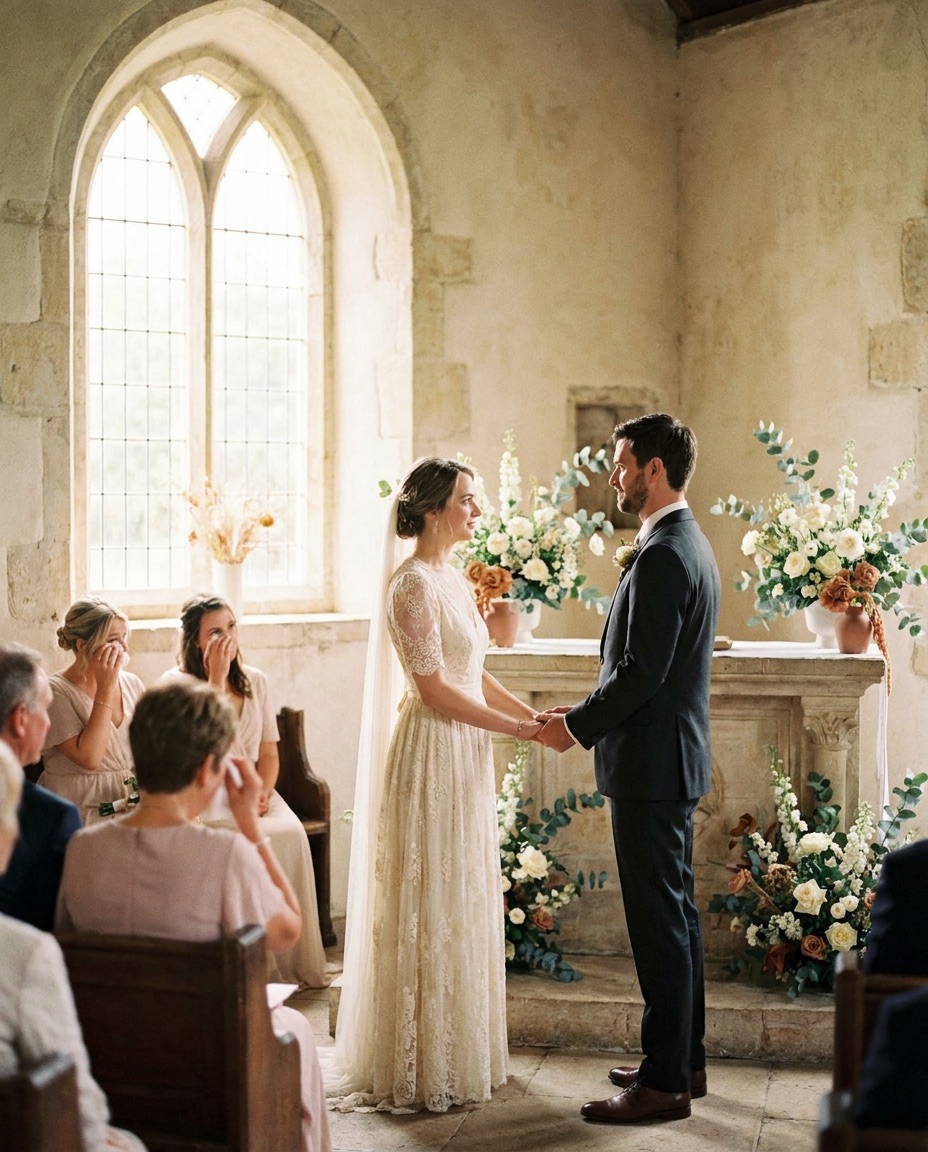
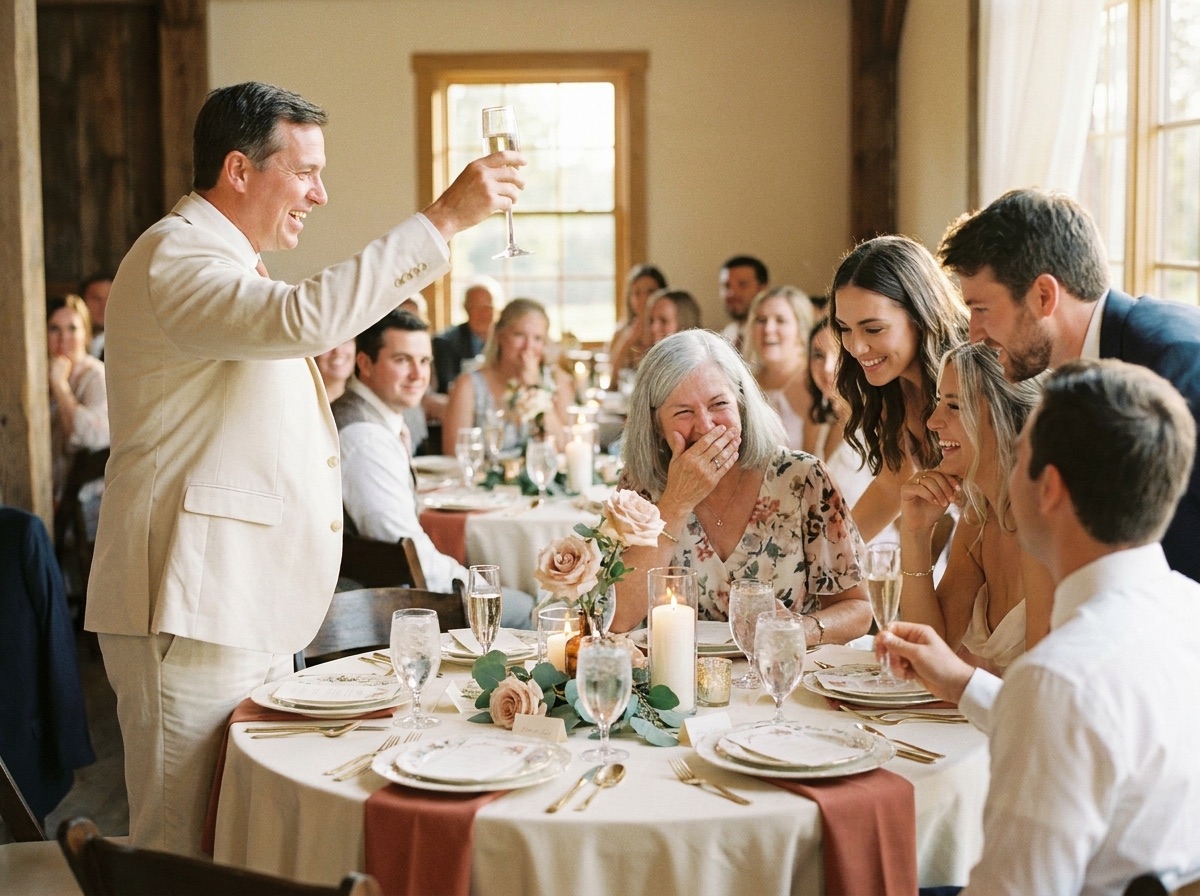
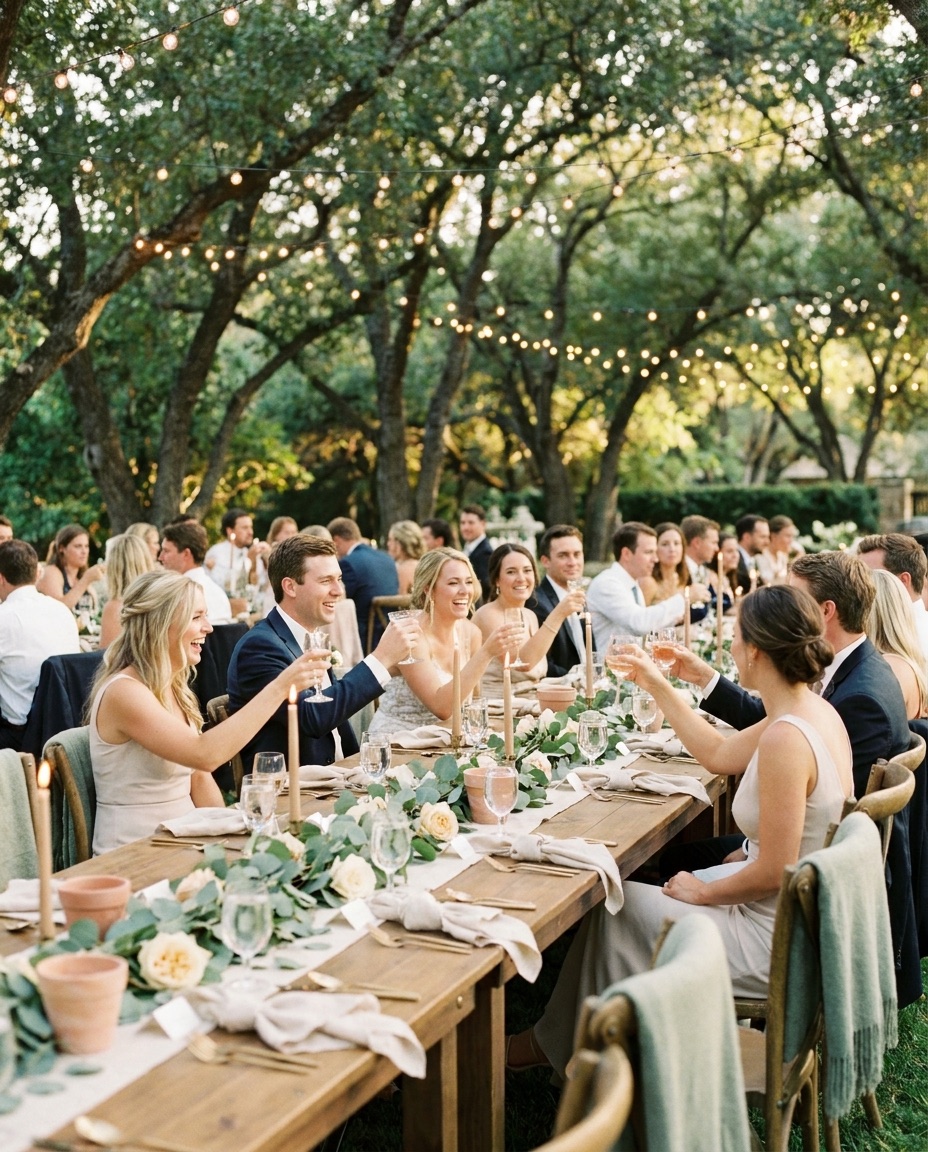
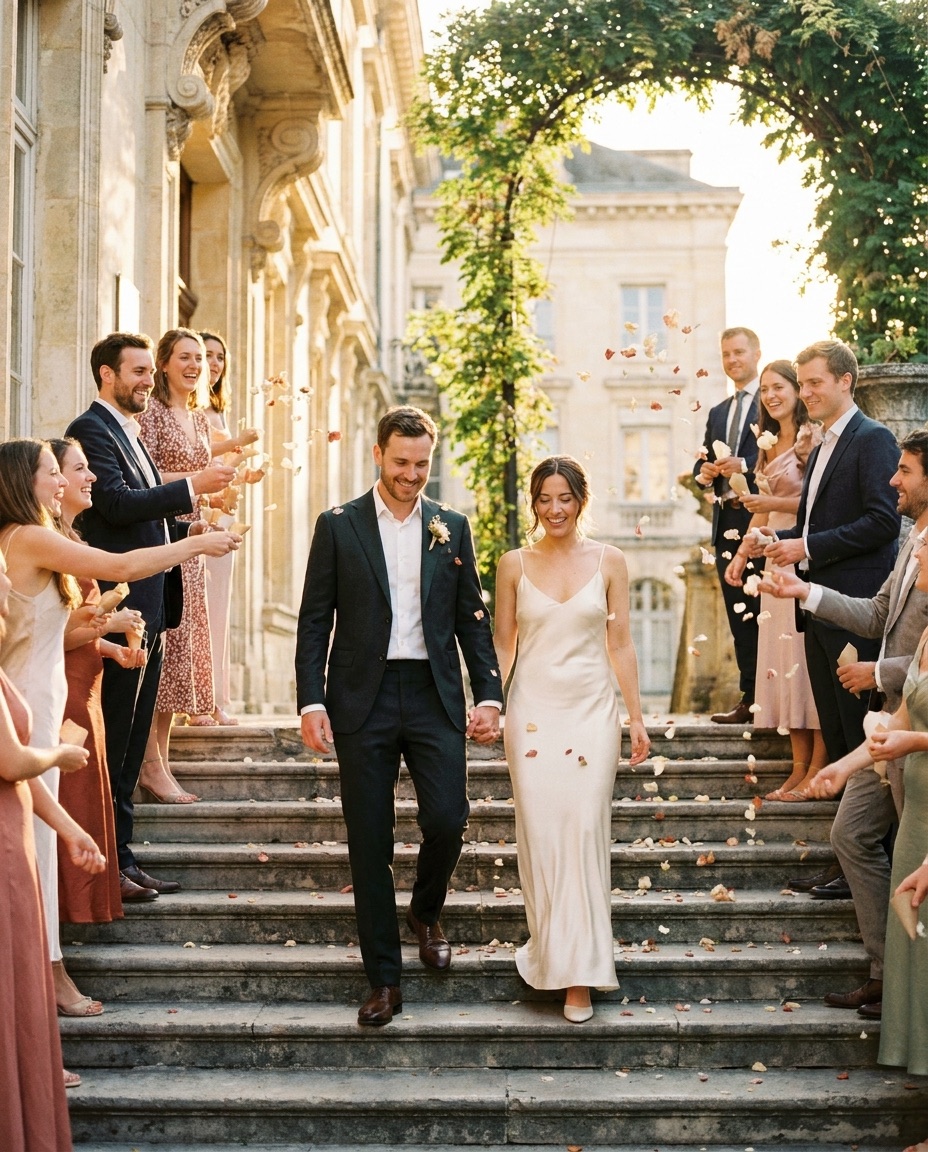
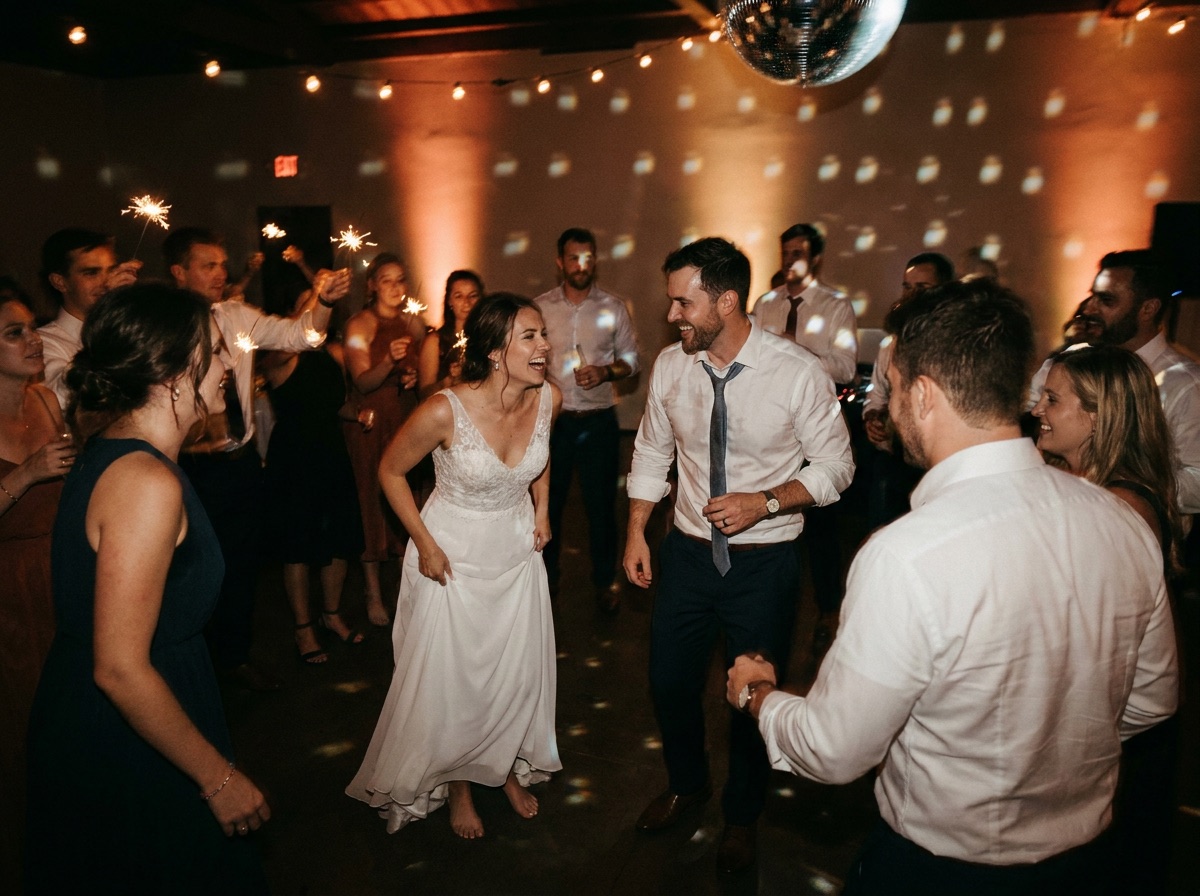
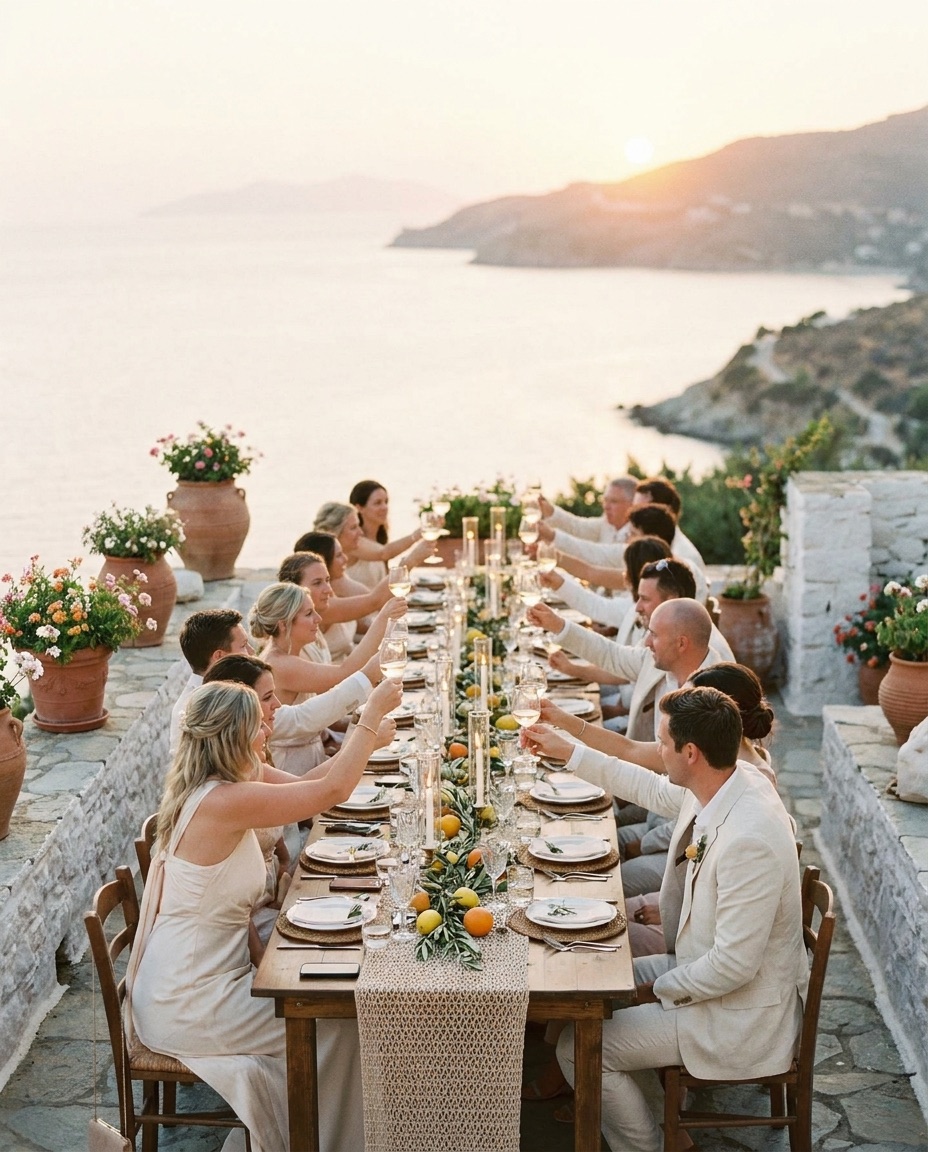
You've probably seen the problem already. Guests take brilliant candid photos during the ceremony, catch the reaction nobody else noticed, and record the dance-floor chaos. Then the images scatter across group chats, private messages, camera rolls, and social feeds. By the time you start asking people to send everything over, the moment has passed and half the files are hard to find.
That's why photo albums sharing works best as an event workflow, not as a storage folder. The useful system collects images while guests are still engaged, controls who can see them, keeps weak or sensitive uploads out of the live display, and protects original files for printing and archiving. A QR code helps, but it isn't the whole solution.
Table of Contents
- Why Shared Photo Albums Fail at Events and How to Fix Them
- Create Your Event Album and Lock In Privacy Settings
- Make Guest Uploads Effortless With QR and Browser Sharing
- Moderate Photos and Run a Live Slideshow Guests Love
- Preserve Original Quality for Printing and Long Term Archival
- Export Organize and Share Your Final Album After the Event
Why Shared Photo Albums Fail at Events and How to Fix Them
At a wedding I've worked on, the couple received photos through several group chats before dessert was served. A cousin posted ceremony images in one thread, friends sent videos privately, and the venue team had a separate conversation with the photo booth provider. Everyone had contributed, but nobody had created a dependable collection point. The couple eventually had to search through conversations, request missing files, and guess which versions were original.
That pattern is common because traditional sharing asks guests to do the work later. “Send me those photos” sounds simple, but it creates a task with no clear deadline, no shared destination, and no reason for a busy guest to stop what they're doing. Group chats also bury useful images under conversation, while public hashtags can make guests hesitate to share private moments.
The participation problem starts with friction
App installation is one of the clearest barriers. One industry survey summary reports that 72% of guests abandon uploads when they're required to install an app, while no-download QR flows raise participation to 60% to 80%. The same summary places app-based guest conversion at 20% to 30%, compared with only 10% to 15% returning to the couple without a dedicated collection system. These figures come from the event guest photo survey summary.
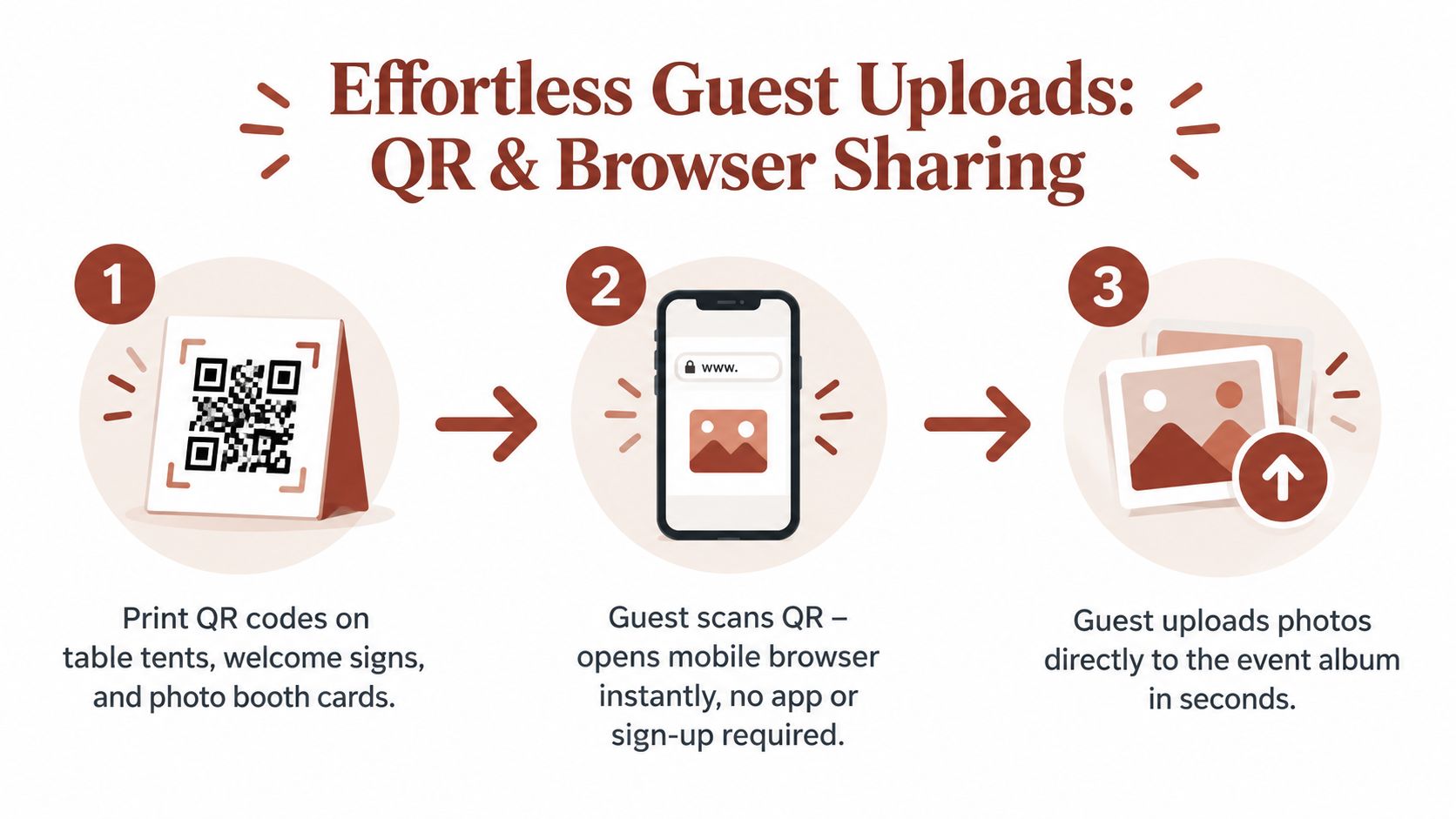
The practical lesson is straightforward. Guests should scan a code, open a mobile browser, choose photos, and upload without an account or installation. Every extra screen gives them a reason to postpone the task.
Practical rule: If a guest needs a tutorial, a password reset, or an app download, the workflow is too complicated for the reception.
Collection alone creates a second problem
A successful upload system can still fail the couple if every image appears immediately. Unfiltered feeds fill with duplicates, blurry shots, accidental pocket photos, and images someone never intended to share widely. The couple then faces a different kind of workload, sorting through a noisy stream while also trying to enjoy the event.
The better model has four stages:
- Collect: Give guests one obvious place to upload photos, videos, and messages.
- Review: Keep pending material private until someone approves it.
- Display: Show only selected images on the gallery or venue screen.
- Preserve: Save original-quality files before the upload or storage window closes.
Historical album behavior supports the event-first approach. A study of Google Picasa Web Albums, Flickr, and Facebook albums found that more than 50% of albums in Google Picasa users' collections were co-event albums, and the sample included Facebook users whose albums were mostly connected to shared events. The study summary on event-centered online albums describes ceremonies, celebrations, reunions, and family activities as central uses for shared albums.
The shift from private camera rolls to networked collections has been building for years. Pew Research found that 54% of adult internet users had posted original photos or videos online, while 47% had shared photos or videos they found elsewhere online. Among online women, 59% posted original photos and videos, according to the Pew Research study. Weddings now need a workflow that respects both sides of that behavior, spontaneous contribution and controlled visibility.
Create Your Event Album and Lock In Privacy Settings
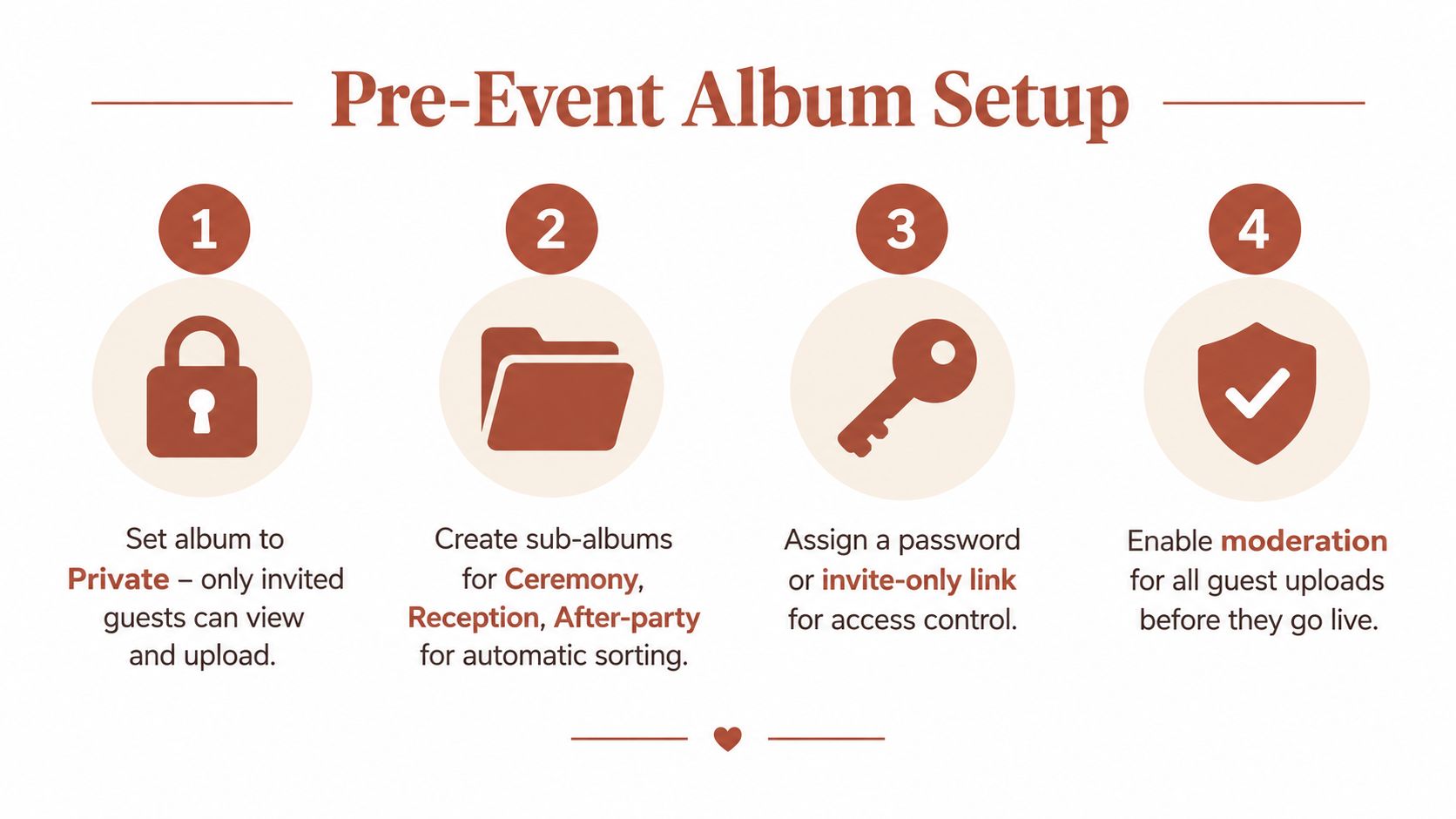
Start setup before you print a single table card. The album structure, access rules, download permissions, and moderation settings should already be tested when guests arrive. On the day itself, you won't want to troubleshoot whether an unlisted link exposes the gallery, whether a PIN works, or whether pending uploads are appearing on the venue screen.
Build one clear album structure
Use one event album as the main destination. Guests shouldn't have to decide whether a particular image belongs in a ceremony folder, reception folder, or after-party collection before they upload it. If the platform supports automatic sorting or optional sub-albums, keep the choices limited to the parts of the event people naturally recognize.
A practical structure is:
- Getting ready or pre-event, only if guests are already involved before the ceremony.
- Ceremony, including arrivals, vows, readings, and reactions.
- Reception, covering dinner, speeches, dancing, and candid moments.
- After-party, if it's a separate gathering with its own guest group.
Don't create a new album for every table, speaker, or hour of the day. Too many destinations split participation and make the final archive harder to browse. A single album can hold the complete story, with sub-albums used only when they improve navigation or access control.
Name the album so guests recognize it instantly. Include the couple's names or event name and the year in the title, but avoid unnecessary personal information if the gallery link might be forwarded.
Choose privacy settings deliberately
There isn't one correct access model for every wedding. An unlisted gallery link keeps the album out of public search while allowing invited guests to open it. A guest PIN adds a simple barrier when the link may be printed in visible places. Invite-only viewing gives tighter control, while couple-only downloads lets guests contribute without automatically receiving the complete archive.
Before choosing, answer three questions:
- Who can upload?
- Who can view approved images?
- Who can download original files?
Those permissions don't need to be identical. You might allow all invited guests to upload, let approved images appear in a private gallery, and keep full-resolution downloads restricted to the couple until final curation is complete.
Test the guest experience before printing
Open the guest link on a phone that isn't signed in to your account. Test the QR code from the distance guests will scan it, then upload a sample image and confirm where it appears. Ask someone unfamiliar with the setup to repeat the process. If they hesitate, the instructions need simplifying.
Choose the album's visual style after the privacy flow works. A coordinated guest page can feel like part of the wedding rather than a technical add-on, but appearance shouldn't take priority over access control. Also confirm how long uploads remain open, when storage ends, and how you'll export the archive.
Make Guest Uploads Effortless With QR and Browser Sharing
The guest experience should take place in the few seconds after someone notices the sign. They scan the QR code with the phone camera, tap the browser link, select images, and upload. There's no reason to ask guests to search an app store, create an account, or remember a special username.
Design the scan around normal guest behavior
Print QR cards where people naturally pause with their phones already in hand. Table tents, the welcome sign, the guestbook table, the bar, and photo booth cards all work for different reasons. Place more than one sign in the room, but keep every code connected to the same album so guests never wonder which version to use.
Use a short invitation instead of technical language:
- Add your photos: Ask guests to share the moments they captured.
- Share your memories: Keep the wording warm and personal.
- See the day through every camera: Explain the value without giving instructions that feel like homework.
The printed design should match the stationery, signage, or menu. A QR code can be functional without looking like event equipment. Leave enough clear space around it, print it at a readable size, and scan the final printed version before placing copies around the venue.
Remove the small decisions
A browser upload page should answer the guest's next question immediately. Make the upload button prominent, accept the common photo and video formats guests use, and avoid forcing them to sort files into detailed categories. If guest names matter for later curation, capture the name as a simple optional or required field based on your privacy needs.
You can also invite written guestbook messages or voice notes alongside images when the platform supports them. Those contributions add context to a gallery, but don't put them in the way of uploading a photo. The primary path should stay fast.
The Wedding Pics provides a private browser-based event album with QR uploads, optional sub-albums, moderation, guestbook messages, original-quality downloads, and live slideshow options. Couples comparing platforms can review the QR code wedding photo workflow against their requirements for privacy, file preservation, and event display.
Brief the room in one sentence
Ask the celebrant, maid of honor, planner, or DJ to mention the album once during a natural announcement. A useful script is: “Use the QR cards on your tables to add the photos and videos you've taken today.”
That reminder matters because guests often intend to upload but forget as the schedule moves on. Keep the upload window open for late sharers, including guests who leave early or discover the sign after the main event. The system should support the event rhythm rather than demand everyone contribute at the same moment.
Moderate Photos and Run a Live Slideshow Guests Love
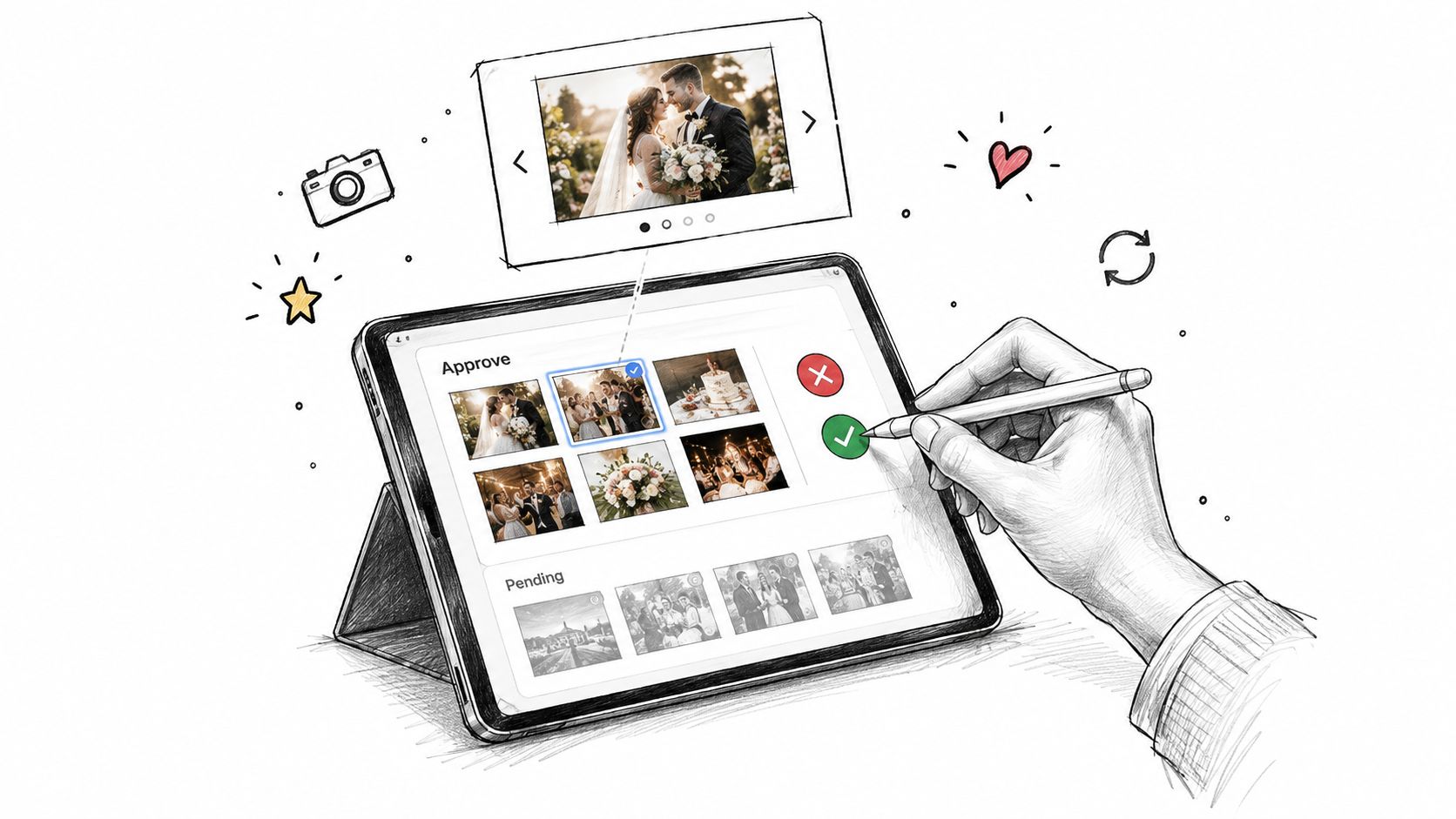
The first uploads may arrive while dinner is being served, speeches are starting, or the couple is away for portraits. A live gallery needs someone to decide what guests can see, what remains pending, and what belongs in the archive rather than on the venue screen. Moderation turns a flood of uploads into a shared visual story, while giving privacy and presentation equal weight.
Give approval responsibility to one calm person
The couple should not be moderating from the dance floor. Assign the job to a planner, venue coordinator, trusted member of the wedding party, or small team with clearly divided responsibility. The moderator needs to know the couple's boundaries, access the review dashboard, and keep pending content private until approval.
Use the same quick test for every submission:
- Is the image clear enough for the screen?
- Does it show the event respectfully?
- Is anyone pictured who may not want public visibility?
- Is it a duplicate of a stronger image?
- Would the couple be comfortable seeing it enlarged in the room?
A rejection does not mean the file has no value. A blurry photograph can remain a funny private memory, while a duplicate can stay in the archive and only the stronger version appears in the curated gallery. Moderation separates collection from publication, creating the privacy and governance layer that improvised sharing usually lacks.
Pace the slideshow like a program
A venue screen should give guests time to recognize people and moments. Set a measured display pace, then mix wide reception scenes with close reactions, selected guestbook entries, and videos only when the venue equipment can play them reliably.
Confirm the screen input, browser access, audio policy, aspect-ratio behavior, and backup connection with the AV team before guests arrive. Run the slideshow on a dedicated device, not a personal phone needed during the reception. If the venue uses a projector, check brightness and text readability from the back of the room.
A live wall should feel like a highlight reel developing in real time, not an inbox projected onto a screen.
The guide to making a wedding slideshow covers sequence, display context, and the difference between a gallery people browse and a presentation everyone watches.
Review quickly, but don't rush blindly
Guests share most actively close to the event, and one event-analytics source reports that sharing falls below 30% when delivery is delayed to two or three days, as described in its event photography timing guidance. That supports reviewing uploads during the event, not approving every file without inspection.
Set short review intervals during natural pauses, such as before dinner service, between speeches, or while the couple takes formal portraits. The moderator can approve a small batch, remove obvious duplicates, and hold uncertain items for later. Written messages and voice notes need the same judgment as images, especially when the feed is visible to the entire room.
Preserve Original Quality for Printing and Long Term Archival
A guest may upload a photo in seconds, yet that file can still be a poor choice for a printed album. Messaging platforms often resize and recompress images, while recipients may save a preview instead of the original. The result can look fine on a phone and disappoint after enlargement, cropping, color correction, or printing.
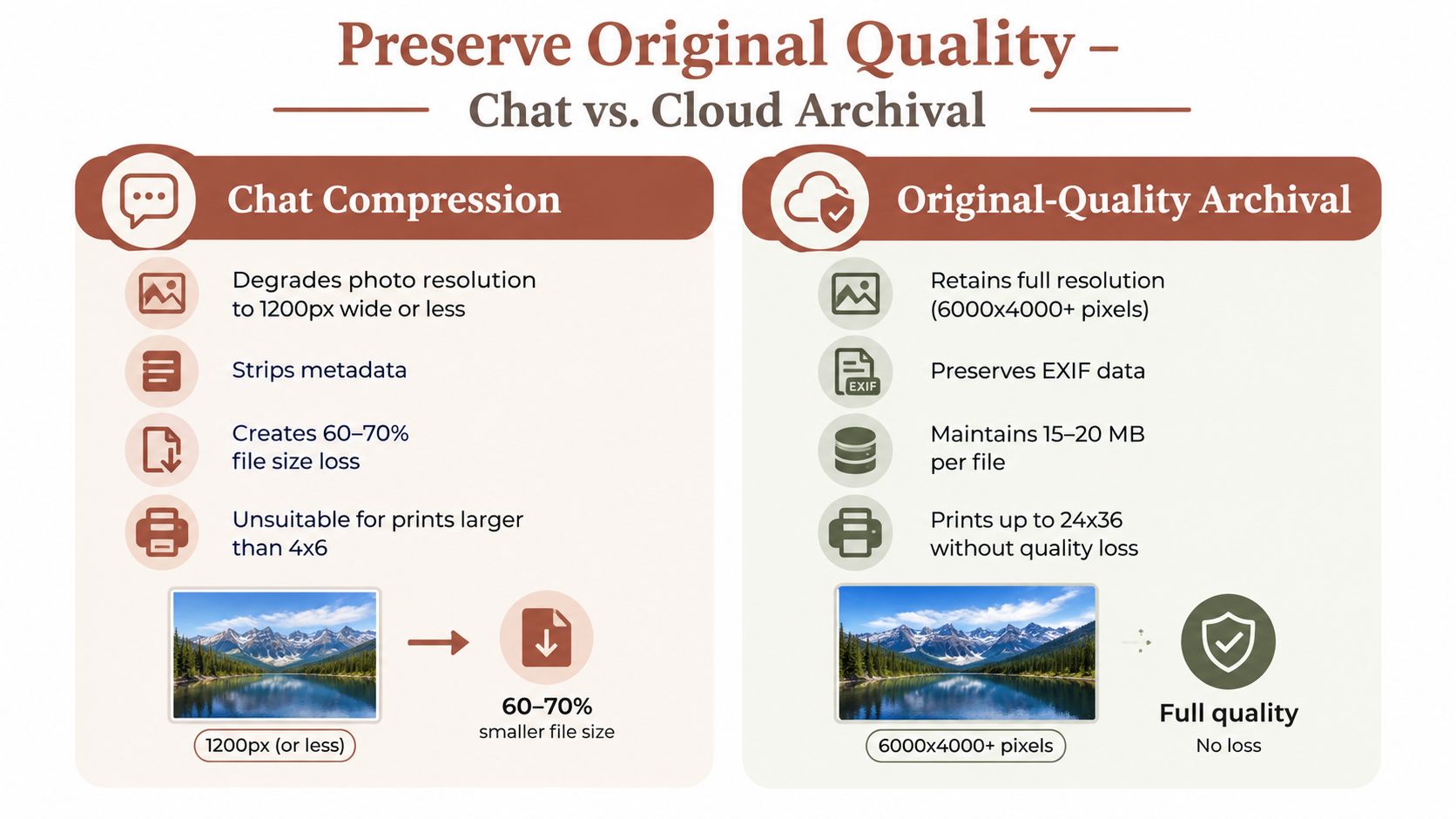
Compare convenience with preservation
| Sharing route | What it does well | Where it falls short | |---|---|---| | Group chat | Fast for a small conversation and familiar to guests | Files can be compressed, buried, duplicated, or separated from the event context | | Social feed | Easy for guests who already post publicly | Privacy, ownership, and visibility depend on the platform and each guest's settings | | Cloud gallery | Centralizes files and supports browsing | It still needs access rules, moderation, and a defined export process | | Original-quality archive | Protects files for printing, editing, and long-term storage | It requires more deliberate downloading, organization, and backup |
The technical case for retaining originals is clear. A compression study found that WebP could reduce file size to 43.54% of the original while maintaining acceptable quality, and reported JPEG quality measures of 42.41 dB PSNR and 0.9854 SSIM. Those figures appear in the technical image compression study. Efficient formats can work well for everyday viewing, but an archive should retain the uploaded original separately from any display copy.
Separate the viewing copy from the master file
Before the event, confirm whether guests can download individual originals and whether the couple can export the complete album as a ZIP file. Individual downloads suit a meaningful image for one family member. A full export protects the collection if the couple changes platforms or sends files to a print designer.
Use moderation as the dividing line between the public gallery and the archive. After reviewing uploads, organize approved files by event stage, contributor, or date. Keep rejected or sensitive material in a private folder if it may have sentimental value, but do not mix it with the polished collection. For multi-day weddings, confirm that storage capacity and the upload period cover every gathering, not only the reception.
Relatives and vendors who need a large set should receive a controlled collection rather than a long sequence of chat attachments. The guide to sending lots of photos explains practical options for sharing many files.
Protect the deadline
Set a reminder before the upload window closes. Download the full archive, open several exported files, check that videos play, and verify that filenames and metadata remain usable. Keep a backup on personal storage so the couple retains control after the hosted gallery period ends.
Export Organize and Share Your Final Album After the Event
The wedding ends, but the album workflow doesn't. A live gallery is a working collection, not automatically a finished keepsake. Before you send the final link, review the album with the same care you gave the slideshow, then create a copy that exists outside the event platform.
Complete a final quality pass
Start with pending uploads. Remove accidental images, obvious duplicates, and anything the couple doesn't want shared. Keep private material restricted rather than deleting it immediately if it may have sentimental value, but make the visibility decision explicit.
Then sort the approved collection into a structure guests can browse:
- Ceremony: Include arrivals, readings, vows, reactions, and group moments.
- Reception: Gather dinner, speeches, dancing, and candid table photos.
- Behind the scenes: Use this for getting ready, vendor moments, and informal images.
- Messages: Keep written entries and voice notes easy to find without burying the photographs.
Choose favorites for a smaller highlight set. Guests who weren't able to attend may prefer a concise story, while close family members might want access to the complete approved gallery. That distinction lets you share thoughtfully without asking everyone to sift through every upload.
Export before you close the project
Use the platform's full-album export when you need a durable archive. The walkthrough for downloading a ZIP file covers the practical handoff from an online collection to local storage. After downloading, open the ZIP, inspect representative photos and videos, and copy the archive to a second trusted location.
Keep the original folder structure if it helps you search later. Add a simple text note with the event date, album access details, and any restrictions agreed with the couple or photographer. If a professional photographer contributed files, keep those originals separate from guest uploads while preserving the connection between both collections.
Share with intention
Once the export is verified, decide whether guests should retain access to the private gallery. You can close uploads while leaving viewing available, switch to a couple-only download setting, or share a final unlisted link with a short thank-you message. If the service supports a custom guest URL, use one that's easy to recognize and type accurately.
A good message tells guests what they're receiving and what you'd appreciate. Thank them for contributing, explain whether the gallery is view-only or downloadable, and mention that the album has been moderated. That reassurance matters because privacy and quality control are part of the experience, not hidden administrative details.
The finished result should be more than a folder full of files. It should be a private, browsable record with approved memories for guests, original-quality assets for the couple, and a backup that won't disappear when the excitement of the event does.
The Wedding Pics gives couples a private QR-based album where guests upload photos, videos, and messages through a browser without an app or account, while the couple controls moderation, visibility, slideshow display, and original-quality export. Visit The Wedding Pics to set up an event collection that guests can use on the day and the couple can preserve afterward.
- photo albums sharing
- wedding photo sharing
- guest photo album
- QR photo upload
- event photo sharing